
top free online pdf compressors free tools can be a lifesaver when an email portal, LMS, or client upload form keeps rejecting your PDF for being “too big.” The tricky part is that “free” and “no size limit” often come with fine print: page limits, daily caps, quality loss, or privacy trade-offs.
This guide focuses on what actually matters in day-to-day use: whether the tool quietly enforces limits, how readable the output stays, what happens to images and scanned pages, and how comfortable you should feel uploading sensitive documents.
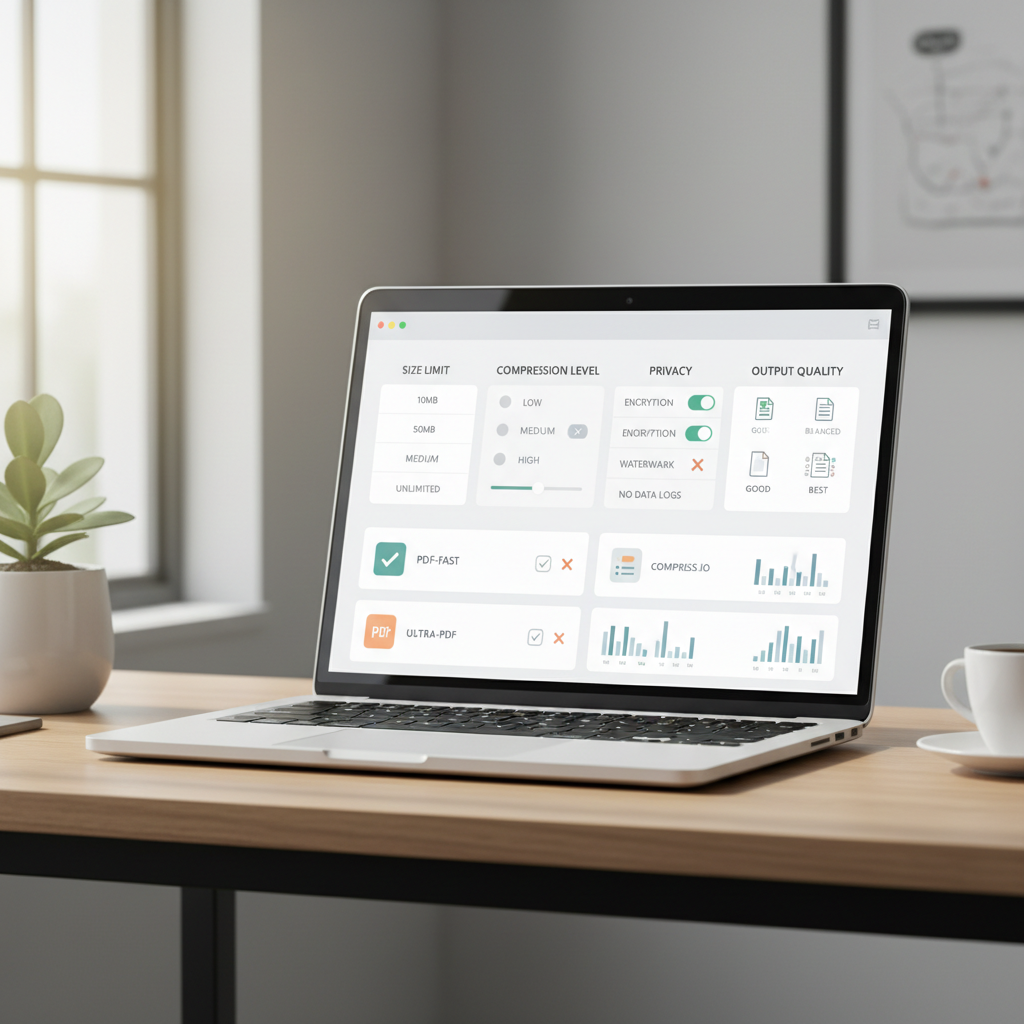
One more reality check before we get into tools: in many cases, “no size limit” means “no explicit file size limit,” but there may still be constraints like timeouts, queue limits, or restrictions on heavy scanned PDFs. If you know what to look for, you can usually avoid wasted uploads and re-compress cycles.
What “No Size Limit” Really Means (and Why It’s Confusing)
Most online compressors rely on server-side processing. Even when they don’t publish a maximum file size, they may still have practical ceilings based on server load, browser memory, or account tier.
- Soft limits vs. hard limits: a tool may accept large uploads, then fail during processing or export.
- Time-based limits: big PDFs can hit processing timeouts, especially for image-heavy scans.
- Daily quotas: some services let you compress “free,” but cap how many tasks you can run per day.
- Feature gating: strong compression or batch compression may require signup.
According to NIST (National Institute of Standards and Technology), organizations should evaluate how data is handled when using external services, especially when sensitive information is involved. That applies here too: a “free” tool still processes your file somewhere.
Quick Checklist: Pick the Right Compressor for Your PDF Type
Before you choose a site at random, identify what kind of PDF you have. Compression success depends heavily on content.
Use this quick self-check
- Mostly text (exported from Word/Google Docs): you can usually shrink it with minimal quality impact.
- Lots of photos or design elements: expect trade-offs; look for adjustable compression levels.
- Scanned PDF (basically images): compression is harder, OCR might help, and results vary widely.
- Fillable forms: avoid tools that “rebuild” PDFs aggressively, they can break form fields.
- Sensitive documents (tax docs, HR files, medical): consider offline tools or services with clear deletion policies.
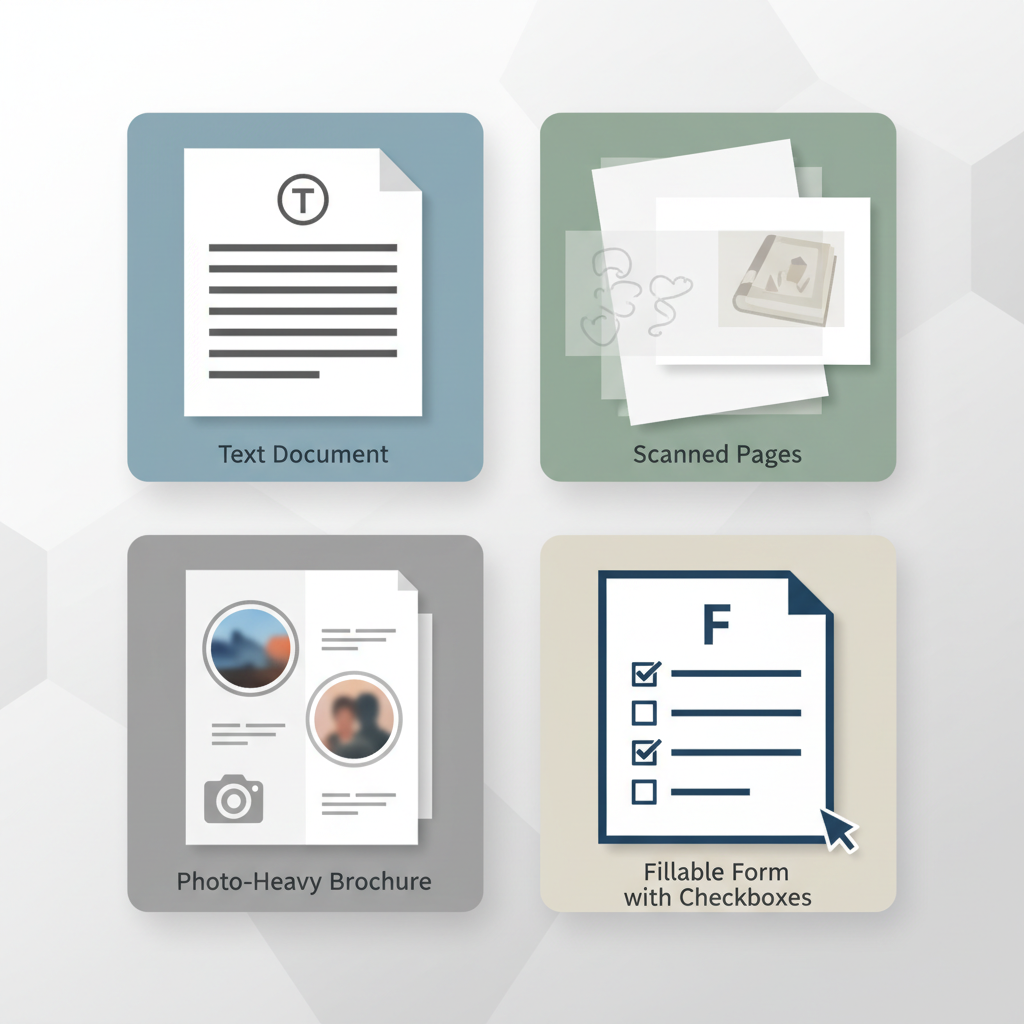
If you’re not sure, open the PDF and try selecting text. If you can’t highlight words, it’s likely a scan, and you’ll need different expectations.
Top Free Online PDF Compressors (What to Expect)
Below are widely used options that frequently appear when people search for top free online pdf compressors free tools. I’m not assuming every tool is perfect for every scenario, because the “best” choice depends on limits, privacy comfort, and how picky you are about output quality.
| Tool | Best for | Typical free limits (may vary) | Quality control | Privacy notes |
|---|---|---|---|---|
| iLovePDF | Fast, everyday compression | May limit tasks or batch features | Basic level choices | Upload to cloud processing |
| Smallpdf | Clean UI, common workflows | Often capped per day without Pro | Basic vs stronger options | Cloud processing, check retention policy |
| Adobe Acrobat Online | Reliability for standard PDFs | Features can vary by account/session | Usually automatic | Adobe account ecosystem for some features |
| PDF24 Tools | More control, utility-style tools | Often generous, depends on workload | Adjustable compression settings | They also offer offline desktop tools |
| Sejda | Occasional use with clear rules | Often page/file size limits published | Moderate control | Cloud processing, watch document type |
Key point: if “no size limit” is your main requirement, shortlist tools that either publish generous limits or offer an offline mode. In practice, offline compression is where “size limit” stops being a web-service issue.
How to Compress a PDF Online Without Ruining Quality
If you only do one thing, do this: compress in steps and check a representative page. A lot of people compress once, see the file is smaller, and only notice unreadable signatures or smeared charts after they’ve sent it.
A simple, repeatable workflow
- Make a copy of the original PDF before you upload anything.
- Start with standard/medium compression, not “strong,” especially for contracts and charts.
- After download, check 3 spots: small text, any images, and any pages with fine lines (tables, engineering drawings).
- If the file is still too large, compress again or switch tools with more control, instead of jumping straight to the harshest setting.
If your PDF is a scan (common pain point)
- Try a tool that offers downsampling (reducing image resolution) and image recompression (JPEG/JP2 changes).
- If text readability matters, consider OCR (optical character recognition). It can increase size sometimes, but can also help simplify content if the tool rebuilds the file intelligently.
- If you control the scanner, lowering scan DPI from 600 to 300 often makes a bigger difference than any online compressor.
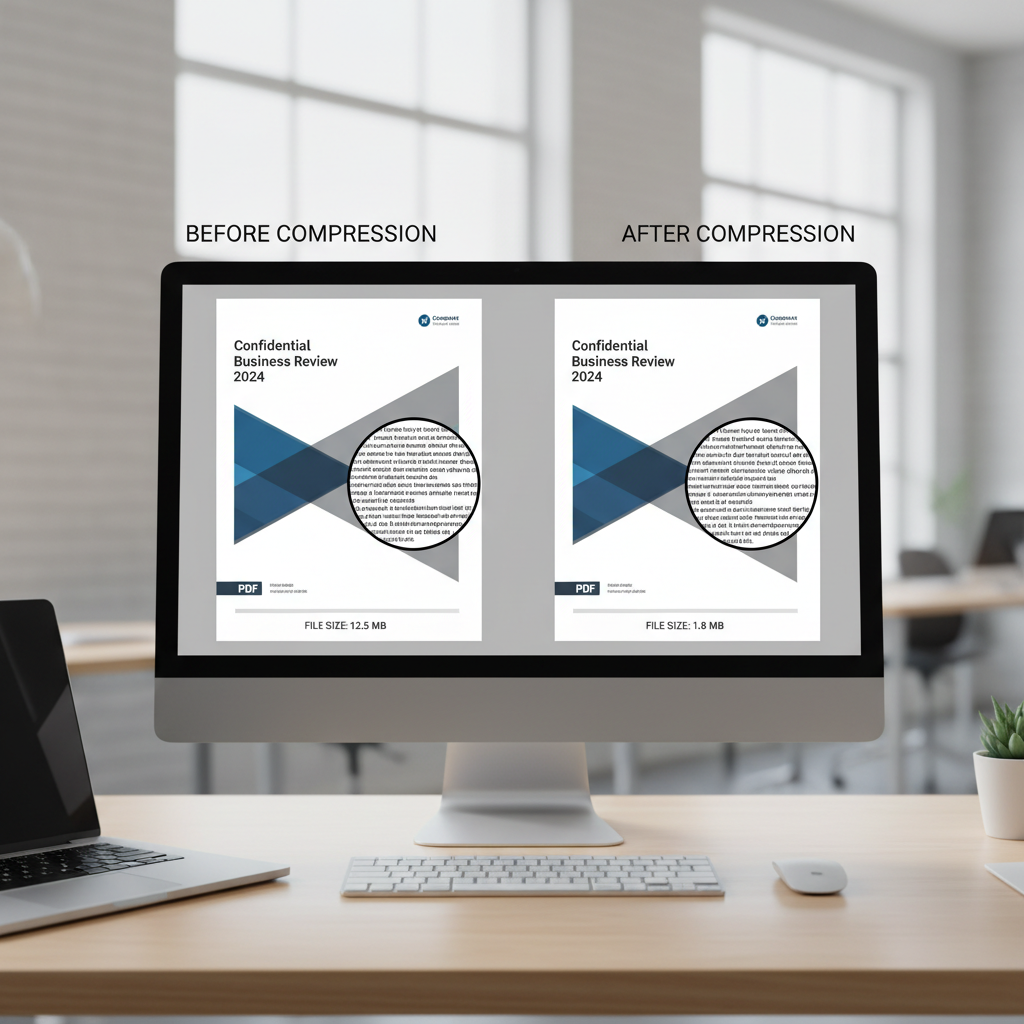
For forms, do a quick click test: try tabbing through fields and re-saving. If fields break, you may need a different tool or a less aggressive compression mode.
Common Mistakes That Make PDFs Bigger (Yes, Bigger)
This is the part people hate hearing, but it saves time: sometimes the “compressor” isn’t the problem, the PDF was exported in a heavy way.
- Embedding full fonts when subset embedding would work.
- Exporting at print-ready image resolution for a file that will only be viewed on screen.
- Saving scanned pages as lossless images when visually-lossy JPEG is acceptable.
- Layer-heavy design PDFs exported with extra metadata and unused objects.
If you can re-export the source file (Word, InDesign, Google Slides), try “optimized for web” or reduce image quality at export. Often that beats any online step afterward.
Privacy, Compliance, and When to Avoid Online Tools
Online compression is convenient, but you’re still uploading a document to someone else’s server. In many business settings, that’s fine for a brochure, and questionable for payroll.
- Low risk: marketing PDFs, public documents, school worksheets without personal data.
- Higher risk: IDs, tax forms, bank statements, HR files, patient info, contracts under NDA.
According to FTC (Federal Trade Commission), consumers should consider how services collect, use, and protect personal information. If the PDF includes sensitive data, it’s reasonable to prefer offline compression or a vetted enterprise tool.
When in doubt, ask whoever owns compliance in your org, or use an offline app that keeps files on your device.
Practical “No Size Limit” Alternatives: Offline and Hybrid Options
If your real requirement is compressing large PDFs repeatedly, the most predictable route is often offline tools. This is also how you avoid “upload failed at 98%.”
Options that usually scale better
- PDF24 Creator (desktop): useful if you want a free utility-style suite and local processing.
- Ghostscript (advanced): powerful for batch compression, but you’ll need comfort with command line.
- Preview (macOS) or built-in export options: limited, but sometimes enough for simple documents.
If you still prefer web tools, a hybrid approach works well: split a giant PDF into chunks, compress each chunk, then merge. It’s not elegant, but it’s reliable when portals have hidden limits.
Conclusion: A Fast Way to Choose Today
If you want a quick pick: for everyday docs, start with a mainstream online compressor and use medium compression, then verify a couple pages before sending. If your PDFs are scanned, expect more trial and error, and consider adjusting scan settings at the source.
Action steps: choose one tool you trust, bookmark it, and keep one offline fallback for sensitive or oversized files. That combination covers most real-world “I need this uploaded in 5 minutes” moments.
Key takeaways
- “No size limit” is often marketing shorthand, test with your largest real file.
- PDF type matters: text compresses easily, scans are harder.
- Quality checks beat guesswork: inspect small text and images before you share.
- Privacy isn’t optional: avoid uploads for confidential documents when possible.
FAQ
What is the best truly free online PDF compressor with no size limit?
In practice, “truly no limit” is rare online because servers have to protect performance. If you routinely handle very large files, an offline compressor is usually the closest thing to no limit.
Why does my compressed PDF look blurry?
Most compressors reduce image resolution and recompress pictures. If the PDF is a scan, the whole page is an image, so blur shows up fast. Try a lighter compression level or reduce file size at scan/export instead.
Can online PDF compressors keep hyperlinks and bookmarks?
Many do, but aggressive compression or “rebuilding” can drop bookmarks or alter structure. After compression, click a couple links and check the outline panel if bookmarks matter.
Are top free online pdf compressors free tools safe for sensitive documents?
It depends on the document and the service’s handling policy. For sensitive files, it’s safer to avoid uploads and use offline tools, or confirm deletion/retention terms and internal compliance requirements.
How much can I realistically reduce a PDF?
Text-heavy PDFs often shrink a lot because they contain reusable objects and fonts. Image-heavy or scanned PDFs may shrink modestly before quality drops, so your “acceptable minimum size” might be higher than you hope.
What should I do if a website still rejects my PDF after compression?
Check the portal rule: sometimes it’s page count, not file size, or it blocks certain PDF versions. Splitting the PDF, flattening layers, or re-exporting as a compatibility PDF often works better than repeated compression.
Does compressing a PDF remove passwords or security settings?
Many tools won’t process protected PDFs unless you unlock them first, and results vary. If the file is encrypted, remove protection only if you’re authorized, and consider offline processing for better control.
If you’re juggling upload limits every week and want a more predictable workflow, it may be worth keeping one trusted online option for quick public docs and one offline compressor for large or sensitive PDFs, it’s less stressful than gambling on whichever site shows up first.