
how to optimize google chrome for speed usually comes down to one thing: reducing what Chrome has to juggle at the same time, so your tabs, pages, and downloads stop feeling “heavy.”
If you use Chrome all day for work, school, or streaming, small slowdowns add up fast, one extra second per search turns into a real productivity tax. The good news is most “Chrome is slow” complaints trace back to a few repeatable causes: too many extensions, bloated cache, runaway tabs, or a misbehaving site.
This guide focuses on changes that actually move the needle, not random “speed hacks.” You’ll get quick checks to diagnose what’s slowing you down, a practical tune-up sequence, and a simple maintenance routine so Chrome stays snappy.
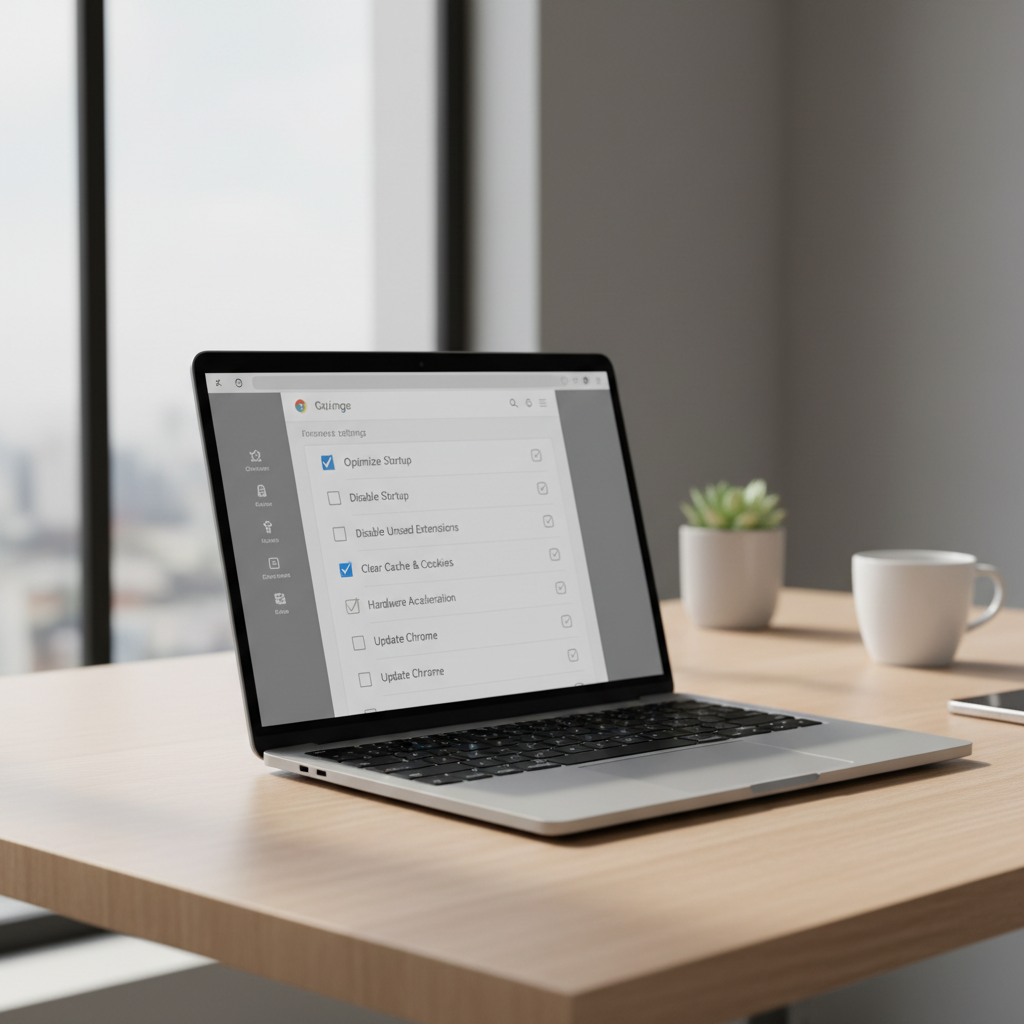
What typically makes Chrome slow (real-world causes)
Chrome gets blamed for everything, but in many cases it’s reacting to what’s happening around it: extensions, sites, your device resources, or network conditions. Here are the most common culprits.
- Too many tabs and heavy pages: Web apps, video, dashboards, and ad-heavy news sites can chew through RAM quickly.
- Extensions with broad permissions: Some run on every page, inject scripts, and add latency without you noticing.
- Bloated cache and site data: Cache helps until it becomes messy or corrupted, then pages load oddly or lag.
- Background processes: Chrome apps, preloading, sync, and helper processes keep running even when you think you’re “just browsing.”
- Outdated Chrome or drivers: Graphics acceleration depends on your GPU driver quality and OS updates.
- Security software or network filtering: Some antivirus/VPN tools inspect traffic and can slow page loads.
According to Google Chrome Help, keeping Chrome updated and managing extensions are two of the most reliable ways to reduce crashes and improve performance.
Quick self-check: identify your bottleneck in 3 minutes
Before you start changing settings, confirm what’s actually slow: page loading, scrolling, typing, switching tabs, or video playback. Different symptoms point to different fixes.
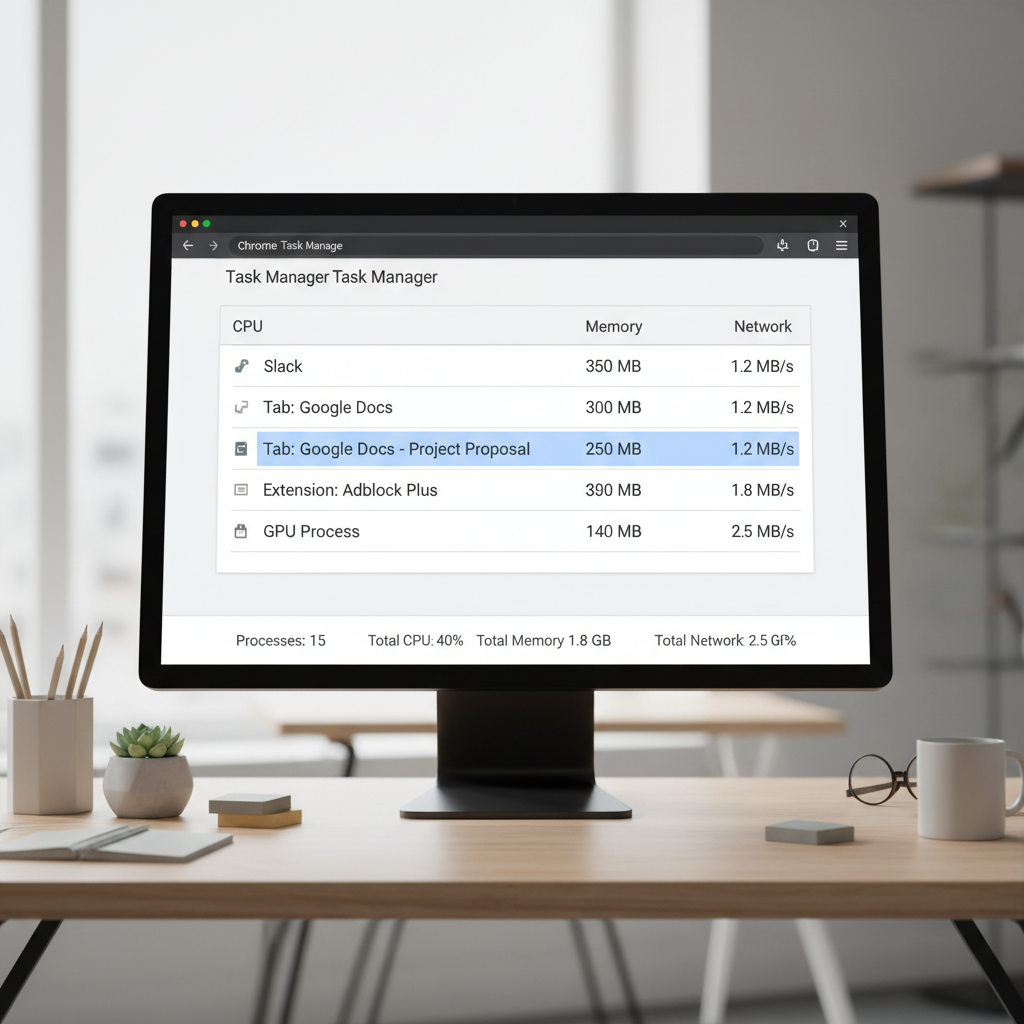
Use Chrome’s built-in Task Manager
Open it via More (⋮) → More tools → Task manager, then sort by Memory or CPU.
- If one tab spikes CPU, that site (or its ads) is the issue.
- If an extension shows high CPU, it’s a strong candidate to remove or replace.
- If GPU Process looks busy and you see choppy scrolling, graphics acceleration may be misbehaving.
Run a fast “clean profile” test
- Open an Incognito window (extensions are often disabled there).
- Test the same slow site.
- If it feels faster, you likely have an extension, cache, or profile issue.
This quick check saves time because it tells you where to focus rather than doing every tweak under the sun.
Fast wins: the highest-impact settings and cleanup
If you’re searching how to optimize google chrome for speed, these are usually the first changes worth doing because they address the most frequent bottlenecks.
1) Update Chrome (and restart it properly)
Go to Settings → About Chrome. Let it update, then fully relaunch. A “restart later” habit often keeps performance fixes from kicking in.
2) Remove or replace extensions you don’t actively use
Open chrome://extensions, then be strict:
- Uninstall anything you “might need someday.” Bookmark alternatives instead.
- Prefer one blocker/one password manager, not three overlapping tools.
- Watch for extensions with broad access like “Read and change all your data on all websites.”
3) Clear site data strategically (not always “everything”)
Clearing cache can help, but wiping all cookies forces logins and can slow you down temporarily. A better approach:
- For one problematic site: Settings → Privacy and security → Third-party cookies → See all site data and permissions, then remove data for that domain.
- For general cleanup: clear cached images/files, keep passwords, avoid deleting autofill unless it’s corrupted.
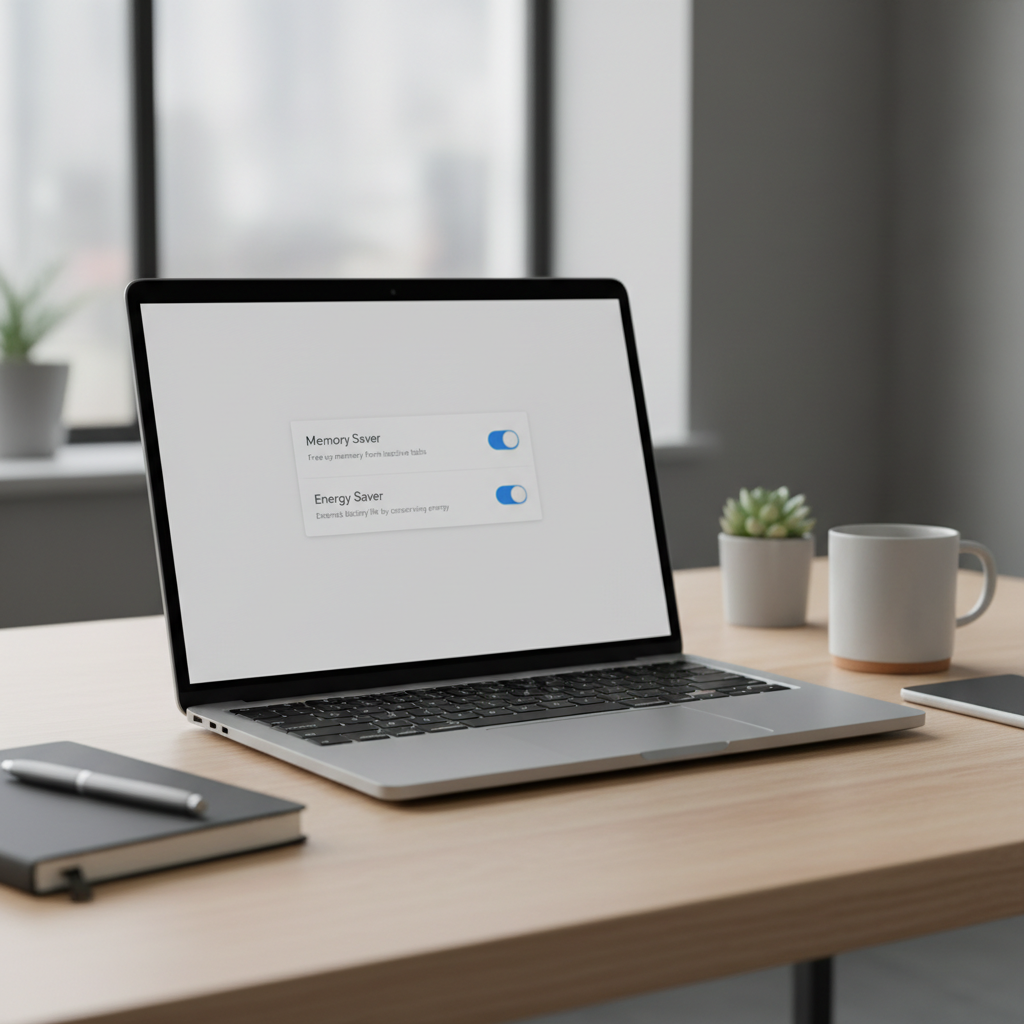
4) Turn on Memory Saver (when you run many tabs)
In Settings → Performance, enable Memory Saver so inactive tabs get suspended. Add exceptions for apps that must stay live (email, Slack, calendar, trading dashboards).
5) Disable “preload pages” if your connection is unstable
Preloading can feel faster on solid broadband, but on congested Wi‑Fi it may create extra background traffic. If your Chrome feels “busy” even when idle, test with preload off for a day.
Advanced tuning: hardware acceleration, flags, and profile health
This section is where people often over-tweak. Keep it simple: change one thing, test, then keep or revert.
Hardware acceleration: keep it on unless it causes issues
Find it in Settings → System. If you see screen tearing, flicker, or choppy scrolling, try toggling it and restarting Chrome. This is especially relevant on older GPUs or after driver updates.
According to Microsoft Support, keeping Windows and device drivers current can improve stability and performance across apps that use GPU acceleration.
Chrome flags: treat as experiments, not permanent fixes
chrome://flags can be tempting. Many flags change or disappear, and some can cause crashes. If you do touch flags:
- Change one at a time and document it.
- Revert if you notice odd rendering, login issues, or extension instability.
- When in doubt, hit Reset all to default.
Create a fresh profile if your current one is “gunked up”
If Chrome has years of extensions, sync data, and site permissions, a clean profile can be the most dramatic improvement.
- Create a new profile and install only must-have extensions.
- Import bookmarks and passwords via your password manager or Chrome sync.
- Keep the old profile for a week in case you forgot something.
A practical “do this in order” speed optimization workflow
If you want a straightforward sequence for how to optimize google chrome for speed, run this checklist in order, it avoids circular troubleshooting.
- Step 1: Update Chrome, restart, test again.
- Step 2: Use Chrome Task Manager to identify a hot tab or extension, close or remove it.
- Step 3: Turn on Memory Saver, add exceptions for critical sites.
- Step 4: Clear site data for the slow domain only.
- Step 5: Toggle hardware acceleration if scrolling and video feel off.
- Step 6: If issues persist, test with a new profile.
Key point: If performance improves after Step 2, stop there. Many people keep “optimizing” and accidentally introduce new problems.
Speed impact summary table (what helps most, and when)
| Action | Best for | Trade-offs |
|---|---|---|
| Remove heavy extensions | Slow typing, laggy pages, random hangs | You may lose convenience features |
| Enable Memory Saver | Too many tabs, high RAM usage | Inactive tabs reload when revisited |
| Clear site data for one domain | One site is slow or broken | Logs you out on that site |
| Toggle hardware acceleration | Choppy scrolling, video stutter | May reduce performance on some GPUs |
| New Chrome profile | Long-term bloat, weird persistent lag | Setup time, re-approve permissions |
Common mistakes that waste time (or make Chrome worse)
- Clearing everything daily: It can create more logins, more re-downloads, and not address the root cause.
- Stacking “speed” extensions: Many do the opposite by running scripts on every page.
- Ignoring a single bad site: Sometimes one tab with runaway JavaScript ruins the whole session.
- Changing multiple flags at once: When something breaks, you won’t know why.
- Assuming it’s always Chrome: If your Wi‑Fi is unstable or your disk is full, the browser gets blamed unfairly.
If you’re on a managed work device, some settings may be controlled by your organization. In that case, focus on tabs, extensions you’re allowed to manage, and site-level cleanup.
Conclusion: keep Chrome fast with a light maintenance routine
Most people searching how to optimize google chrome for speed don’t need a complicated setup, they need fewer extensions, saner tab habits, and one or two performance settings turned on. If you do only two things this week, uninstall the extensions you don’t trust or use, then enable Memory Saver and whitelist your core apps.
If the browser still crawls after a clean-profile test, that’s usually the signal to look outside Chrome: security software, drivers, storage space, or your network. When the slowdown affects work-critical systems and you’re in an IT-managed environment, it may be worth asking IT support to review policy extensions and endpoint filtering.
Action plan: run the 6-step workflow once, then revisit extensions monthly. Chrome stays fast when it stays boring.
FAQ
- Why is Chrome slow even with only a few tabs open?
It’s often one heavy tab, an extension running on every site, or background processes like sync and preloading. Check Chrome Task Manager to spot the actual CPU or memory hog. - Does clearing cache speed up Chrome?
Sometimes, especially when a site behaves oddly or loads stale assets. For general slowness, extensions and too many tabs are more common causes than cache alone. - What’s the safest way to disable extensions without losing them?
You can toggle them off in chrome://extensions instead of uninstalling. If Chrome becomes faster, re-enable one at a time to find the culprit. - Should I use Chrome “cleanup” tools?
Be cautious with third-party cleaners. Chrome already includes tools to manage site data and performance, and extra utilities can introduce risk or conflict with security settings. - How do I make Chrome faster on an older laptop?
Enable Memory Saver, reduce extension count, and keep fewer tabs active. If video stutters, try toggling hardware acceleration and make sure your OS and drivers are up to date. - Is it better to reset Chrome settings or create a new profile?
Resetting can help when settings are messy, but a new profile tends to be cleaner when the problem is years of accumulated extensions and permissions. - Can antivirus or a VPN slow down Chrome?
Yes, in some setups traffic inspection or filtering adds latency. If you suspect this, test briefly with the VPN off or consult your IT/security provider rather than disabling protection long-term.
If you’re trying to speed up Chrome for work, keep a short list of “must-have” extensions and treat everything else as optional. If you want a more hands-off approach, a quick audit of extensions, performance settings, and a clean-profile baseline usually gets you most of the gains without endless tweaking.