
Phone hidden features tips often matter most when your day feels noisy: too many notifications, too many taps, and not enough time to dig through settings.
Most smartphones already include tools to speed up common tasks, tighten privacy, and reduce distractions, but they’re tucked behind long-press menus, accessibility pages, or “advanced” sections that few people revisit after setup.
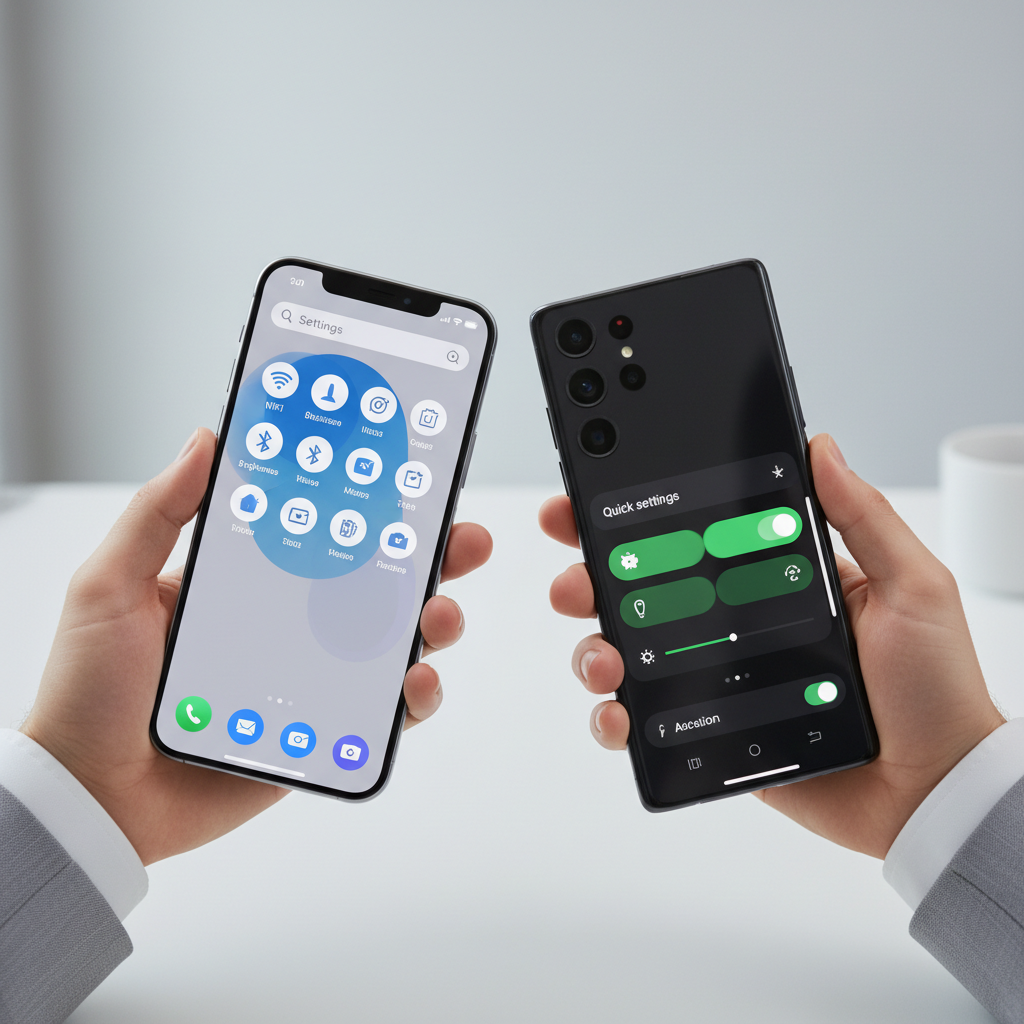
This guide focuses on practical features you can turn on in minutes, plus a quick “which one should I try first” checklist. I’ll also call out a few common mistakes, because some tricks help a lot, and some just create more clutter.
Quick “Hidden Feature” Map: What to Try First
If you only have 10 minutes, pick from the list below based on the pain you feel most often.
- Always missing important texts: focus modes + notification summaries
- Worried about privacy: app permission audit + tracking controls
- Battery anxiety: per-app battery review + background refresh limits
- Too many taps: back-tap, double-press shortcuts, or quick tiles
- Hard to read or hear: accessibility shortcuts (text size, captions, sound balance)
Key takeaway: the best “hidden” features are the ones you’ll use weekly, not the ones that look cool once.
Time-Savers You Can Trigger Without Opening Apps
Most people think shortcuts require a separate app, but your phone already has fast actions baked in. Many are behind a long-press or a double-press.
Try these high-impact shortcuts
- Long-press app icons to jump into specific actions (compose message, scan code, start recording). On Android this is common; on iPhone it shows as a quick actions menu.
- Double-press the side/power button for wallet, camera, or another system action depending on your model and settings.
- One-handed reach tricks: enable one-handed mode or “reachability” so the top of the screen comes down.
- Text replacement for addresses, emails, and common replies, it’s a small setup that pays back daily.
These are classic phone hidden features tips because you don’t “see” them until you hold down the right thing, then you wonder why you ever opened the app first.
Notification Control That Actually Reduces Stress
Notifications are rarely the problem, it’s the lack of triage. Your phone can separate “must-see now” from “fine later,” but you have to teach it your rules.
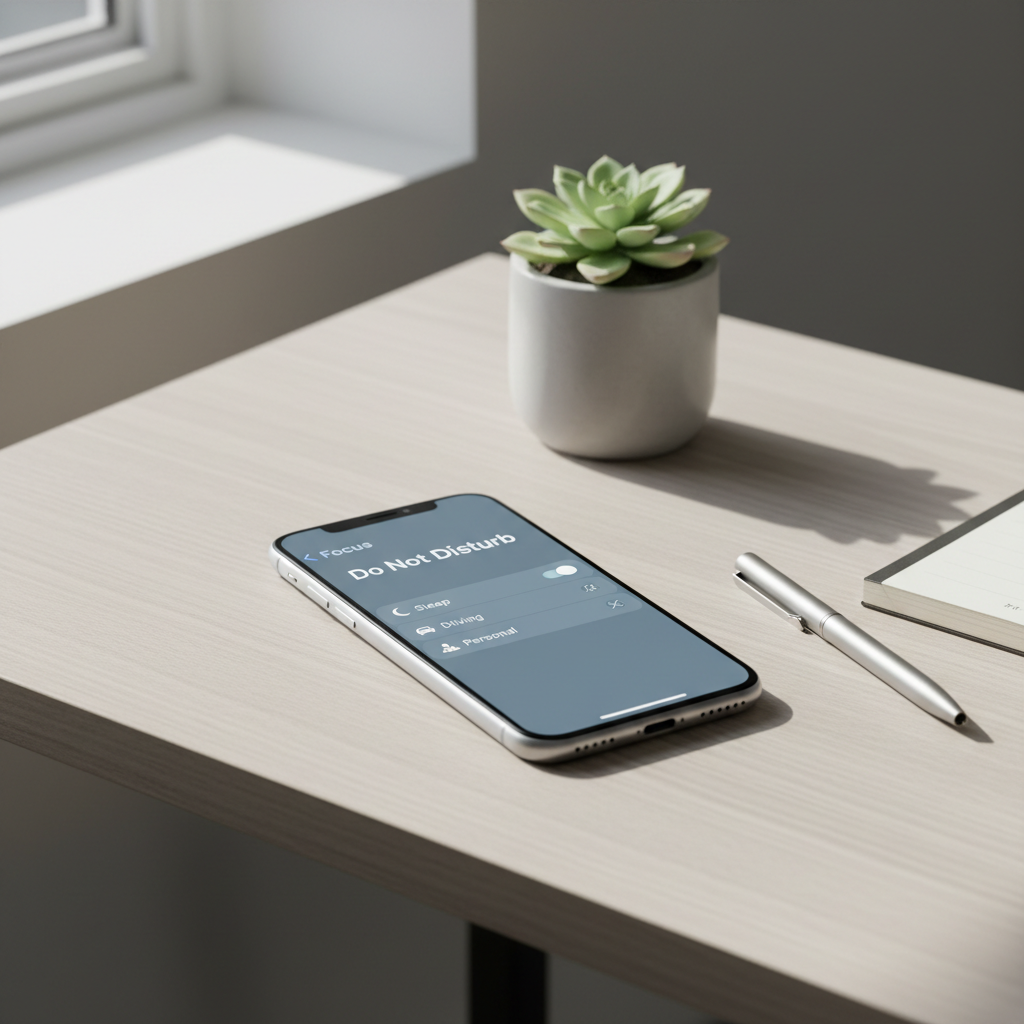
What to adjust (without overdoing it)
- Focus / Do Not Disturb schedules: set a work block and a sleep block, then whitelist only key people or apps.
- Per-app notification categories (common on Android): keep direct messages, mute “recommendations” and “promotions.”
- Notification summaries / batching: group non-urgent apps to show at set times.
- Lock screen privacy: hide sensitive preview text, so your phone isn’t broadcasting your life.
According to Apple and Google support documentation, both platforms provide built-in tools like Focus/Do Not Disturb and granular notification controls to help reduce interruptions and manage attention.
Privacy and Security Settings Most People Never Revisit
Privacy settings drift over time, you install one app for a weekend trip and it quietly keeps location access for months. A five-minute audit makes a real difference.
A simple monthly privacy check
- Location access: switch rarely-used apps to “While Using” rather than “Always.”
- Microphone and camera: revoke access for apps that don’t need it, then re-enable only if something breaks.
- Photo library permissions: choose “selected photos” where available, it’s a good compromise.
- Ad/Tracking controls: turn off cross-app tracking where your OS allows it.
These phone hidden features tips are less flashy, but they’re the ones you feel later when you’re not dealing with random “why does this app know that?” moments.
Accessibility Features That Help Everyone (Not Just in Emergencies)
Accessibility sounds niche until you try it. A lot of these features are simply better ergonomics: fewer taps, easier reading, clearer audio.
Useful options worth turning on
- Live captions: helpful for videos in public or when audio is unclear, but it may affect battery on some phones.
- Sound recognition and alerts: can be useful in some situations, but treat it as assistive, not a guarantee for safety.
- Text size, bold text, contrast: reduces eye strain for long reading sessions.
- Back tap or gesture shortcuts: assign quick actions like screenshot, flashlight, or opening a note.
According to U.S. Access Board, accessibility features help reduce barriers in technology use; in practice, many of these settings improve comfort even if you don’t identify as having a disability.
Battery and Performance: Hidden Leaks You Can Patch
If your battery feels unpredictable, it’s usually a couple of apps doing too much in the background, not a mystery. The trick is diagnosing before you start turning off everything.
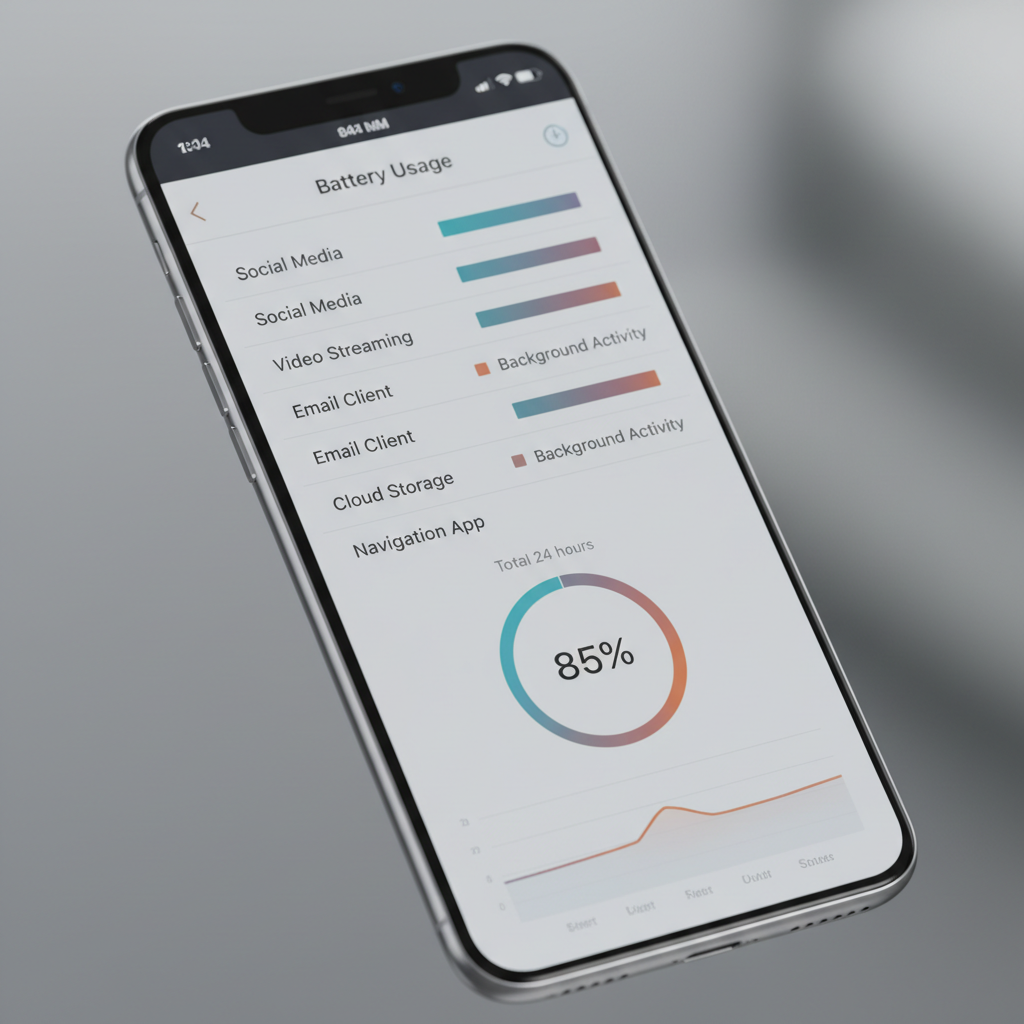
What to check in 3 steps
- Battery usage by app: find the top 3 over the last 24 hours and the last 10 days.
- Background activity: restrict background refresh for apps that don’t need instant updates.
- Connectivity habits: if you’re in weak-signal areas, your phone may work harder; switching Wi‑Fi calling on (if supported) can help in some cases.
According to Google and Apple support guidance, reviewing per-app battery usage and limiting unnecessary background activity are standard ways to improve day-to-day battery life without drastic changes.
Cheat Sheet Table: Feature, Where It Lives, Best Use
Here’s a quick map you can screenshot, then work through over a weekend.
| Hidden feature | Where to find it (typical) | Best for |
|---|---|---|
| Focus / Do Not Disturb | Settings → Focus / Notifications | Reducing interruptions during work and sleep |
| Per-app permissions | Settings → Privacy / Permission manager | Limiting access to location, mic, camera |
| Long-press app quick actions | Home screen app icon | Jumping straight into frequent tasks |
| Text replacement | Keyboard settings | Typing faster and reducing errors |
| Battery usage by app | Settings → Battery | Finding power drains and background overuse |
Practical Setup Plan (15 Minutes, No Tech Headaches)
If you want a simple routine, this is the one that tends to stick because it’s short and you feel the payoff quickly.
- Minute 1–5: turn on a sleep focus schedule, hide lock-screen previews if you prefer privacy.
- Minute 6–10: audit location permissions, set rarely-used apps to “While Using.”
- Minute 11–15: check battery usage, restrict background activity for the top offender if it doesn’t need it.
If you’re exploring phone hidden features tips for the first time, resist the urge to change everything. Do a small pass, live with it for two days, then adjust.
Common Mistakes That Make Hidden Features Feel “Useless”
- Turning on too many modes: five focus profiles look organized, but most people only maintain two.
- Revoking every permission: some apps break in ways that waste your time, aim for “least necessary,” not “none.”
- Chasing battery perfection: aggressive restrictions can delay messages or stop backups, which might not be worth it.
- Ignoring updates: feature names and menu locations move after OS updates, so re-check after major upgrades.
When It’s Worth Getting Extra Help
If you’re dealing with a lost device, possible account compromise, or repeated pop-ups that suggest malware, it’s usually smarter to get help sooner. Your wireless carrier store, the device maker’s official support, or a reputable repair shop can walk through account recovery and security steps.
If you suspect stalking or unsafe tracking, consider speaking with a local support organization or qualified professional for guidance that fits your situation, these cases are sensitive and deserve careful handling.
Conclusion: Make Your Phone Feel “New” Without Buying a New One
Hidden features aren’t magic, but they add up: fewer distractions, fewer taps, and fewer apps quietly overreaching. Pick two changes you’ll actually keep, set them up today, and check back next week to refine.
Action ideas: start with one Focus schedule and a quick permission audit, then move on to battery drains once you’ve stabilized notifications.
FAQ
What are the most useful phone hidden features tips for everyday use?
Focus/Do Not Disturb scheduling, long-press app shortcuts, and text replacement tend to deliver the fastest “time saved” with minimal setup.
Do hidden features work the same on iPhone and Android?
The concepts are similar, but menus differ. Android often offers more granular controls per app, while iPhone tends to group features into clearer system sections.
Can changing permissions break apps?
Yes, sometimes. A good approach is to revoke access for one category at a time, then test the app, if something fails, you can re-enable the specific permission.
How do I find which apps drain my battery the most?
Open your Battery settings and review usage over 24 hours and several days. Look for background activity spikes, not just screen time, before you change settings.
Are accessibility features only for people with disabilities?
No. Features like larger text, live captions, and shortcut gestures can improve comfort and speed for anyone, especially in noisy or low-light situations.
Is it safe to use back-tap or gesture shortcuts?
Usually yes, but set them to low-risk actions (like opening notes or taking a screenshot) until you trust how often they trigger in your pocket or while walking.
How often should I review my privacy settings?
Monthly is realistic for many people, and also after installing travel, shopping, or “try once” apps that commonly request location and photo access.
If you’re trying these settings and still feel buried in taps and alerts, a more organized approach helps, make a short list of your top three annoyances, then tune your phone around those instead of chasing every new trick.