
how to protect pc from ransomware attacks is mostly about getting a few basics right, backups you can actually restore, updates that happen on time, and small Windows settings that quietly block a lot of common attack paths.
If you have ever seen a ransom note screenshot, you already know why this matters, ransomware rarely “half breaks” a PC, it tends to stop work completely, and the stress comes from not knowing what you can recover.
This guide focuses on practical steps that work for typical home PCs and small-business laptops in the US, with notes on where the advice changes if you manage multiple devices or handle sensitive data.
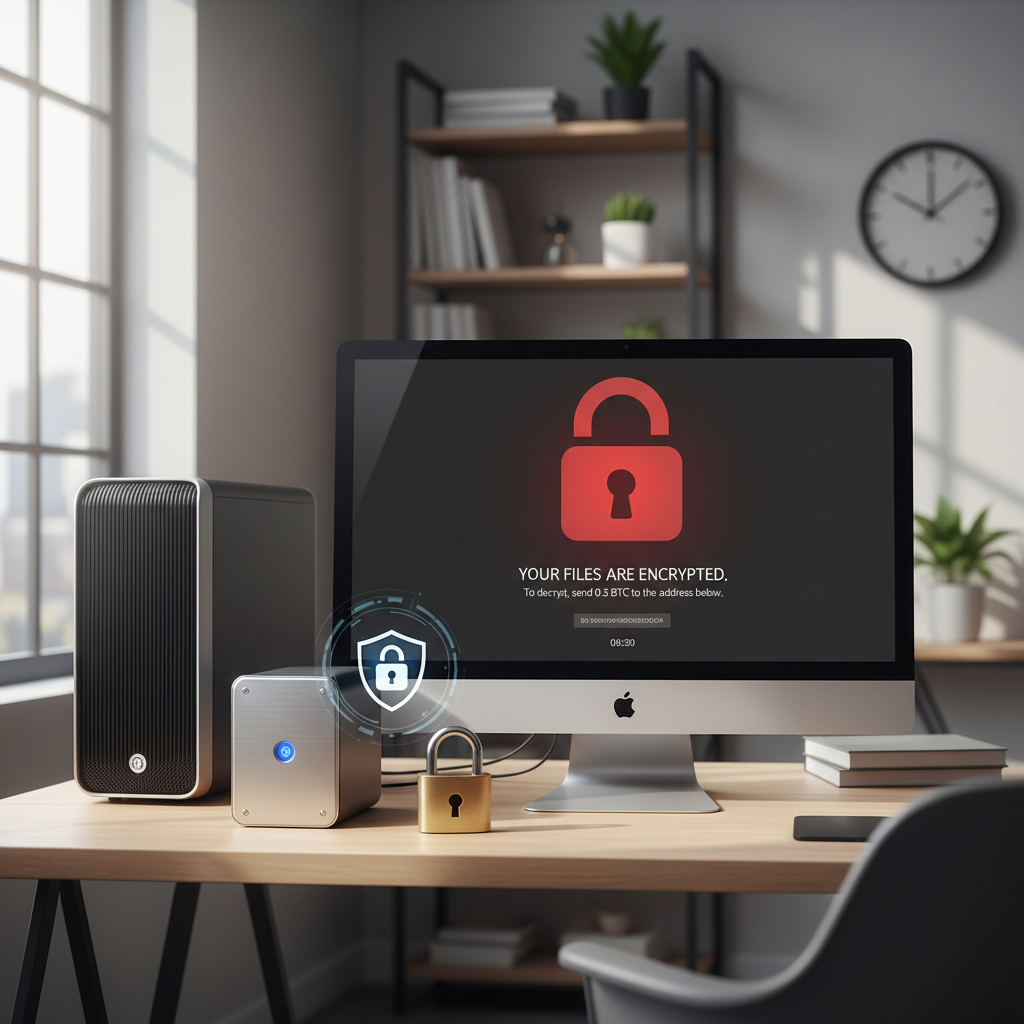
What usually enables ransomware on a PC
Ransomware is not magic, it typically arrives through a small set of repeatable paths, and most “easy protection” comes from shrinking those paths.
- Phishing links and attachments, especially fake invoices, delivery notices, HR documents, and “password-protected” files that push you to enable macros.
- Unpatched software (Windows, browsers, VPN clients, remote tools). Attackers often scan for known vulnerabilities that already have fixes.
- Stolen passwords, then remote login through exposed RDP or reused credentials across services.
- Over-permissioned accounts, daily use in an admin account makes encryption spread faster across files and mapped drives.
- Risky “free” downloads, cracks, fake driver updaters, and bundled installers that add remote access tools.
According to CISA, keeping systems patched, using strong authentication, and maintaining offline backups are core defenses against ransomware. That is the boring truth, but it is also why these steps work.
A quick self-check: how exposed is your PC right now?
You can get a decent read in five minutes. If you answer “no” to two or more items below, prioritize the backup section and the Windows hardening section.
- Do you have a recent backup that is not always plugged in?
- Can you restore one test folder from that backup without guessing?
- Is Windows Update set to install updates automatically?
- Do you use a standard user account for daily work, not an administrator account?
- Is multi-factor authentication enabled on your main email account?
- Do you avoid enabling Office macros unless you requested them?
- Is Remote Desktop disabled, or restricted to VPN and strong authentication?
That last point is where a lot of home users get surprised, they never “turned on” remote access intentionally, but a remote tool or past troubleshooting session left something exposed.
Backups that ransomware cannot easily erase (the part people skip)
If your goal is how to protect pc from ransomware attacks in a way that still works on a bad day, backups matter more than any single security setting. Many infections also try to delete local backups and shadow copies, so design matters.
Use the 3-2-1 idea, but keep it simple
- 3 copies: your working files plus two backups
- 2 different types: for example, external drive + cloud
- 1 offline or isolated: an external drive you unplug, or cloud with versioning and MFA
A realistic setup for many people: One external SSD used weekly and unplugged after, plus OneDrive/Google Drive/iCloud with version history. That combination often covers both “device encryption event” and “accidental file overwrite” problems.
Mini test restore, once a month
Pick a folder, restore it to a new location, and open a few files. This sounds small, but it removes the worst uncertainty when you are under pressure.

Harden Windows with a few high-impact settings
For most Windows PCs, you can reduce ransomware risk without turning your machine into a fortress that breaks normal work. The goal is fewer “easy wins” for malware.
Turn on built-in protections you may already have
- Microsoft Defender Antivirus: keep it enabled, avoid running two real-time antiviruses at once unless you know why.
- Controlled folder access (Windows Security): can block unauthorized apps from modifying protected folders. It may require allow-listing legitimate apps you use.
- SmartScreen: helps block suspicious downloads and sites.
Reduce privilege and remote exposure
- Use a standard account for daily work, keep an admin account only for installs and system changes.
- Disable Remote Desktop if you do not need it. If you do, restrict it behind VPN and strong authentication.
- Limit SMB file sharing to only what you need, especially on laptops that travel.
According to NIST, “least privilege” is a foundational security principle. In plain English, fewer admin rights means fewer ways for encryption to spread and fewer settings malware can change.
Email, passwords, and MFA: where most infections start
This is the uncomfortable part, a lot of ransomware incidents begin in inboxes, not in “hacky” movie-style exploits. If you want how to protect pc from ransomware attacks with minimal effort, secure your email account first.
- Enable MFA on your primary email (Gmail, Outlook, iCloud). Email takeover often leads to password resets across everything else.
- Use a password manager to avoid reuse, reuse turns one leak into many logins.
- Be suspicious of urgency: “payment overdue”, “account locked”, “wire transfer changed”. Verify via a known channel, not the email thread.
- Do not enable macros in Office files you did not request. If a file “needs macros to view”, treat that as a red flag.
According to the FBI, ransomware remains a major cybercrime threat, and many reports involve phishing or stolen credentials. You do not need to be paranoid, just consistent.
A simple protection plan by scenario (with a practical table)
Not everyone needs the same checklist. Here is a straightforward way to choose your next steps without overbuilding.
| Scenario | What to do this week | What to add next |
|---|---|---|
| Home PC, mostly browsing and personal files | Automatic updates, MFA for email, external backup weekly | Controlled folder access, password manager |
| Remote worker with company apps and shared drives | Verify VPN use, standard user account, cloud versioning | Separate work/personal profiles, tighter sharing permissions |
| Freelancer or small business handling client files | 3-2-1 backups, MFA everywhere, restrict admin rights | Endpoint management, security awareness training, logging |
| IT managing multiple PCs | Patch policy, remove local admin, disable exposed RDP | EDR, application allowlisting, incident response playbook |
If you feel stuck, pick one “recovery” action (backups) and one “prevention” action (updates or MFA). That pairing tends to give the most noticeable risk reduction.
If you suspect ransomware: what to do immediately
When ransomware hits, speed matters, but random clicking makes things worse. If you think encryption is in progress, act calmly.
- Disconnect from the network: turn off Wi‑Fi, unplug Ethernet, disconnect from shared drives.
- Do not start “cleanup” downloads from unknown sites, that often adds more malware.
- Take notes: ransom note text, file extension changes, time you noticed it, any suspicious emails.
- Preserve evidence if this is a business environment, your IT or incident response provider may need it.
- Consider professional help before paying anything. Payment does not guarantee recovery, and it can create legal and compliance issues depending on context.
According to CISA, organizations should focus on containment and recovery, including restoring from clean backups. For individuals, the same idea applies, contain first, then restore from sources you trust.
Common mistakes that waste time (and confidence)
These show up repeatedly, especially when people try to “fix everything” in one night.
- Backing up after infection: you may copy encrypted or infected files into your only backup set.
- Leaving the backup drive plugged in: many ransomware strains will encrypt connected external storage.
- Assuming sync equals backup: cloud sync can propagate encrypted files. Version history helps, but you need to know how to roll back.
- Disabling security features to “speed up”: turning off Defender, SmartScreen, or updates tends to increase risk for a small performance gain.
- Ignoring the entry point: if the root cause is a stolen password, reimaging the PC alone does not solve it.
Key takeaways (keep this short list handy)
- Backups you can restore are your best hedge, keep one copy offline or isolated.
- Patch faster: enable automatic updates for Windows and major apps.
- Lock down identity: MFA on email, unique passwords, avoid credential reuse.
- Harden Windows: standard user account, Defender features, reduce remote access.
- Have a calm response plan: disconnect, document, restore from clean sources, ask for help when unsure.
Conclusion: make it boring, then make it consistent
how to protect pc from ransomware attacks comes down to two outcomes, stopping common entry points and keeping a clean way back if something slips through. You do not need a complicated setup, you need habits you will keep.
Pick two actions today: turn on MFA for your primary email, and set up an offline-capable backup you can test. If you do those well, the rest becomes tuning, not panic.
FAQ
How do I know if a file is encrypted by ransomware or just corrupted?
Ransomware encryption usually changes many files at once, often adds a new extension, and may drop a ransom note in multiple folders. A single corrupted file can happen for normal reasons, but widespread, sudden changes point to an incident.
Is Windows Defender enough to stop ransomware?
For many home users, Defender plus safe habits and updates can be a solid baseline, but no antivirus can promise full protection. Backups and MFA often matter just as much as the scanner.
Should I pay the ransom if my photos and documents are locked?
Payment may not result in recovery, and it can create additional risks. If the files are critical, consider consulting a reputable incident response professional first, and check whether you have recoverable backups or cloud version history.
What is the safest backup method for ransomware?
A mix tends to work best: an external drive that stays disconnected most of the time plus a cloud service that supports versioning. The key is making sure ransomware cannot reach every copy at once.
How often should I back up my PC to reduce ransomware damage?
It depends on how often files change. Many people do well with daily cloud versioning and a weekly offline drive backup, then adjust if they create important work more frequently.
Can ransomware spread to other devices on my home network?
It can, especially through shared folders, synced drives, and reused passwords. That is why disconnecting quickly and reviewing sharing settings helps limit blast radius.
What should small businesses do differently from home users?
Small businesses usually need more control around patching, admin rights, and logging, plus a written recovery process. If you handle regulated data, it is worth asking an IT/security professional about compliance and incident reporting expectations.
If you are trying to protect multiple PCs, share files across a team, or you want a more “set it once and monitor it” approach, it may be worth having an IT pro review your backup design, remote access exposure, and Windows hardening so you are not guessing under pressure.