
AI Computer Use is when an AI system can operate your computer (or parts of it) on your behalf—reading what’s on screen, clicking buttons, typing text, and completing multi-step tasks from a simple instruction.
If you’ve ever thought “I don’t need another app, I just need my computer to do this boring workflow for me,” you’re already close to the value here. The jump is that modern tools can take natural language instructions, interpret your UI, and run actions across your existing desktop apps.
That said, not every “AI automation” product is true computer control. Some tools only generate text, some only connect APIs, and some really do on-screen interaction. This guide helps you tell the difference, spot good-fit use cases, and avoid security mistakes that can turn a productivity win into a mess.
What “AI Computer Use” actually means (and what it doesn’t)
In practical terms, AI Computer Use sits between classic macros and full robotic process automation. You give an instruction like “download last month’s invoices, rename them, and email a summary,” and the system attempts to execute the steps in your apps and browser.

Three common flavors show up in the market, and the wording matters when you evaluate vendors:
- API automation: the AI calls connected services (Google Drive, Slack, CRM) without touching your screen. Often fast and reliable, but limited to what’s integrated.
- UI automation: the AI works through the interface like a person would. This is where ai screen interaction technology and vision models come in.
- Hybrid: it uses APIs when available and falls back to UI actions when it must.
What it doesn’t mean: an AI that magically “knows” your business rules. Most failures come from unclear instructions, messy UI states, missing permissions, or websites changing layout.
How it works under the hood: from intent to clicks
Most computer use ai tools follow a similar loop: interpret your request, observe the screen, choose an action, execute it, then re-check the result. You can think of it as “plan, look, act, verify.”
Key building blocks you’ll hear about:
- Natural language computer control: turns your instruction into steps the agent can attempt.
- Vision / UI understanding: identifies buttons, fields, menus, error states, and page changes on screen.
- Action layer: performs ai-powered mouse and keyboard automation (click, type, scroll, hotkeys) or calls system functions.
- Guardrails: approvals, scoped permissions, and “stop if unsure” behaviors.
According to NIST (National Institute of Standards and Technology), managing AI risk typically involves governance, measurement, and controls. In desktop automation terms, that translates to: define what the agent may do, monitor outcomes, and limit access to sensitive data.
Where AI-assisted PC automation fits best (and where it struggles)
AI-assisted pc automation shines when tasks are repetitive but slightly variable—too messy for a strict macro, too small to justify a big integration project.

Good-fit examples:
- Copying data between internal portals that don’t have APIs
- Renaming, moving, and uploading files based on a pattern
- Drafting emails from a spreadsheet and sending after approval
- QA-style checks: “open these pages and confirm the status is green”
Common struggle zones:
- Highly dynamic UIs (frequent layout changes, A/B tests, popups)
- Ambiguous goals (“clean up the accounts” without a clear rule)
- High-stakes actions (payments, payroll, irreversible deletes) without strict approvals
This is also where tool positioning can mislead. Many “ai desktop control software” products demo well on a stable app, then wobble on real-world screens with interruptions.
Quick self-check: do you need an AI agent or simpler automation?
Before you adopt an ai agent for windows tasks, it’s worth a fast reality check. Some workflows are still better served by a keyboard shortcut, a template, or a basic script.
- You likely want AI Computer Use if your task crosses 2+ apps, needs screen reading, and changes slightly each run.
- You likely want RPA/macro tooling if your UI is stable and the steps never vary.
- You likely want API automation if your tools already connect cleanly (Zapier-style workflows), and reliability matters more than “works anywhere.”
If you’re evaluating autonomous computer agents, ask one blunt question: “Can it complete my workflow when a popup appears, a login expires, or a window is moved?” The answer tells you how “real” the agent is in daily use.
Choosing tools: a practical comparison table
Different products land in different places on control, reliability, and risk. Here’s a simple way to compare options without getting lost in marketing language.
| Approach | How it works | Best for | Typical risks |
|---|---|---|---|
| API-first automation | Calls connected services | Stable, repeatable workflows | Limited coverage, integration gaps |
| UI / screen-based agent | Reads screen, clicks/types | Legacy tools, no APIs, cross-app work | UI changes, misclicks, sensitive data exposure |
| Hybrid agent | API when possible, UI fallback | Mixed environments | Complex debugging, unclear failure modes |
When you see claims around ai-driven workflow automation, look for evidence of approvals, logs, and safe rollback behavior. Those details matter more than a flashy demo.
Hands-on setup: how to pilot secure AI desktop automation in a week
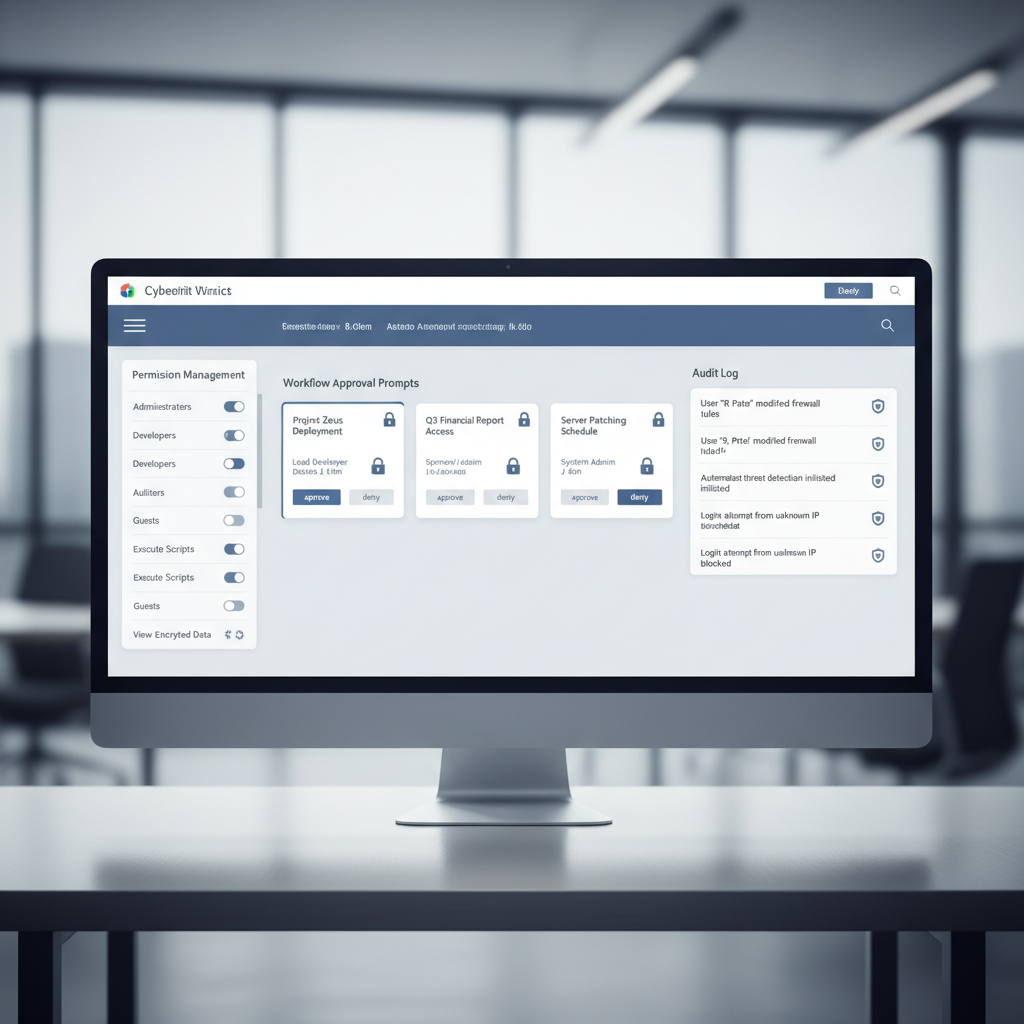
If you want a real-world result fast, run a small pilot with guardrails. The goal is to learn where the agent succeeds, where it breaks, and what controls your team needs.
Day 1–2: pick one workflow that is annoying but low risk
- Target 10–20 minutes of work, repeated at least weekly
- Avoid money movement, account deletion, or anything hard to undo
Day 3–4: write instructions the agent can’t misread
- Define inputs and success criteria: “Use this folder, create a CSV with these columns, stop if a login screen appears.”
- Tell it when to ask permission: “Before sending email, show the draft.”
Day 5–7: add controls and test failure modes
- Run with a test account or non-production data when possible
- Simulate interruptions: popups, slow pages, expired sessions
- Enable logging so you can replay what happened
This is where secure ai desktop automation becomes more than a slogan. You’re validating that the system can pause, ask, and recover instead of pushing through blindly.
Common mistakes (and how to avoid them)
Most failed rollouts aren’t because the model is “bad,” they’re because expectations are wrong or controls are missing.
- Automating a messy process: if humans can’t describe the rule, an agent won’t guess it reliably. Clean the process first.
- No permission boundaries: giving broad access to email, files, and admin screens creates avoidable exposure.
- Skipping approvals: keep a human in the loop for irreversible actions, at least early on.
- Ignoring UI drift: screen-based automation needs maintenance when apps update layouts.
Key takeaways to keep in mind:
- Start small, prove value, then expand scope
- Prefer least-privilege access and separate test vs production
- Measure reliability by reruns under interruptions, not by a perfect demo
When to bring in IT, security, or a specialist
If you’re using an agent that can control desktops, you’re in a different risk category than a chat assistant. Bring in help when the workflow touches regulated data, customer records, financial systems, or admin consoles.
- Security review: confirm how credentials are stored, whether sessions are isolated, and what audit logs exist.
- Compliance check: requirements vary by industry and contract, a quick review can prevent rework later.
- Architecture fit: sometimes API automation or a lightweight integration is safer than UI control.
According to CISA (Cybersecurity and Infrastructure Security Agency), reducing cyber risk often involves access control, monitoring, and secure configuration practices. If your deployment can’t support those basics, slow down and tighten the setup before scaling.
Conclusion: make AI Computer Use boring on purpose
The best outcome with AI Computer Use is not a dramatic demo, it’s a dependable assistant that handles routine steps, asks when unsure, and leaves a clear trail when something changes. If you treat it like a product rollout—scope, controls, testing—you usually get real time savings without inviting avoidable risk.
If you want to move this forward, pick one low-stakes workflow, define a clear “done” condition, and run a one-week pilot with approvals turned on.