
how to fix hotspots not working android usually comes down to a short list: your carrier plan blocks tethering, Android hotspot settings conflict with your network, or the connected device is negotiating Wi‑Fi wrong.
If you rely on your phone for work, travel, or a quick backup when home internet drops, a broken hotspot is more than “annoying”, it stops everything. The good news is most fixes are practical and safe to try in a few minutes.
I’ll walk through a fast triage first (so you don’t waste time), then deeper checks like APN, bands, and carrier provisioning, plus a small table you can use to match symptoms to likely causes.
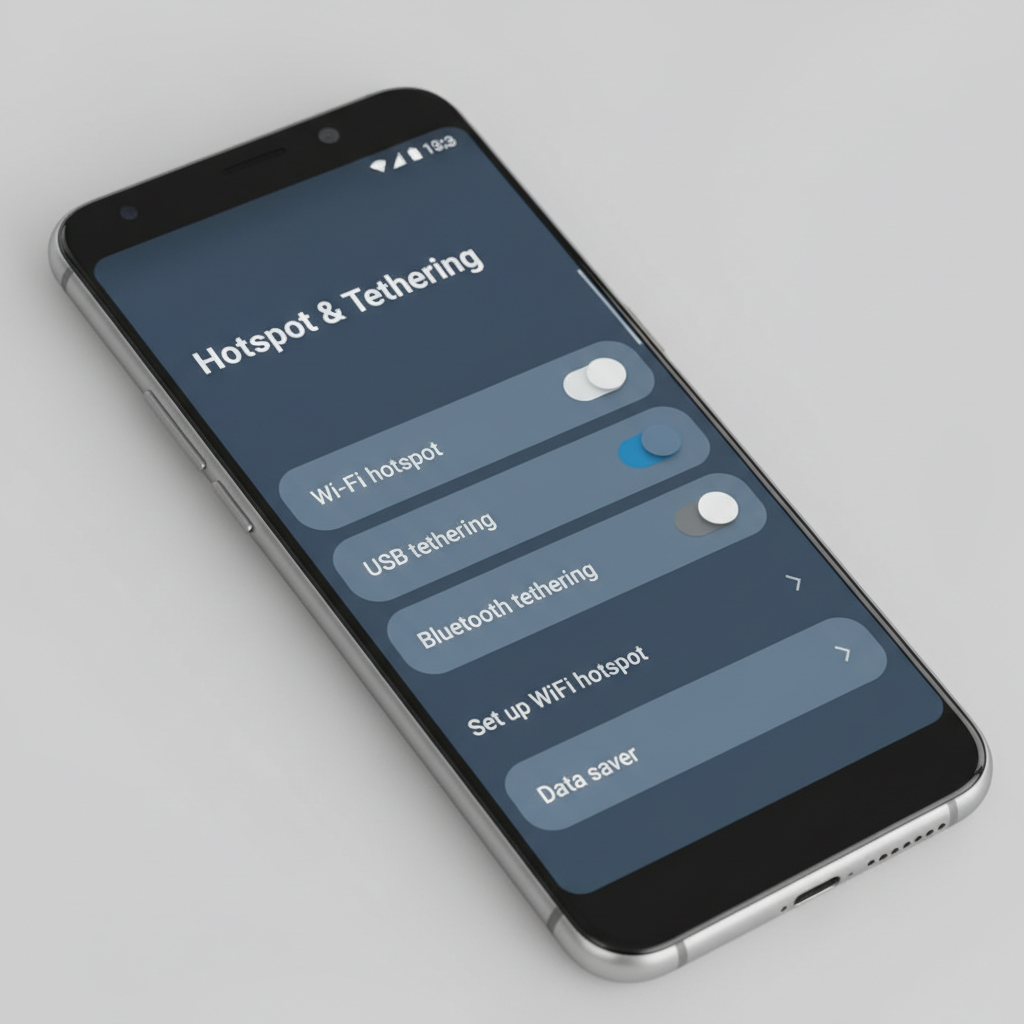
Quick triage: identify what “not working” means
Before changing a bunch of settings, pin down the failure mode. Hotspot issues look similar but fix differently.
- Hotspot won’t turn on: toggle fails, grays out, or turns off instantly.
- Hotspot turns on, but nothing can connect: password errors, “can’t join network.”
- Devices connect, but no internet: Wi‑Fi connected, pages won’t load.
- Internet works, but it’s unstable: random drops, slow speed, timeouts.
Key point: if the phone itself has no mobile data, your hotspot won’t magically create internet. Confirm your Android can load a webpage on cellular first.
The fastest fixes that solve most Android hotspot problems
These are the “low risk, high payoff” steps. Do them in this order so you can stop as soon as it works.
1) Restart hotspot and refresh the radio
- Turn Hotspot off, wait 10 seconds, turn it on again.
- Toggle Airplane mode on for 10 seconds, then off.
- Restart the phone if you haven’t yet.
2) Forget network on the client device and reconnect
On your laptop/tablet, “Forget” the hotspot Wi‑Fi network, then reconnect and retype the password. This clears cached security details that often cause looping “wrong password” errors.
3) Check battery and data-saving features
- Disable Battery Saver temporarily.
- Disable Data Saver temporarily.
- If your Android has “Adaptive connectivity” or similar toggles, turn them off for testing.
Many Android skins quietly limit tethering behavior under power-saving modes, especially when screen turns off.
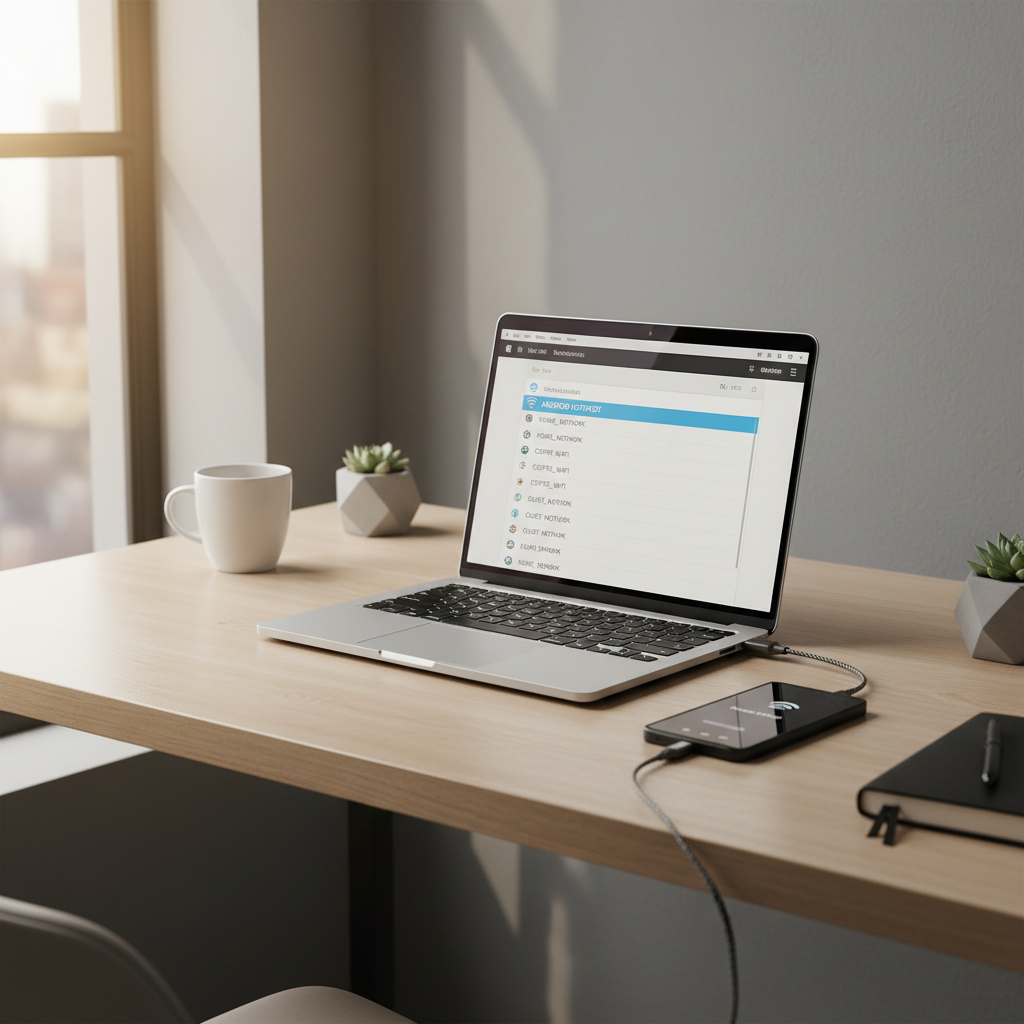
Match symptoms to likely causes (use this table)
If the quick fixes didn’t help, use the symptom you see most consistently and start there.
| What you see | Likely cause | What to try next |
|---|---|---|
| Hotspot toggle turns off instantly | Carrier provisioning, SIM issue, policy restriction | Check plan, update carrier settings, try a different SIM if available |
| Clients can’t join, password loops | Security mode mismatch, cached credentials | Change hotspot password, switch security, forget/rejoin |
| Connected but “No internet” | APN/tethering blocked, DNS issues, VPN conflict | Disable VPN, reset APN, test private DNS off |
| Works briefly, then drops | Band congestion, power limits, device sleep behavior | Change hotspot band, keep screen on during test, check battery settings |
| Very slow speeds | Weak LTE/5G signal, deprioritization, client limits | Move location, lock to LTE, test single device |
Carrier plan, tethering limits, and “provisioning” (the part people miss)
In the U.S., a hotspot can fail even when mobile data works fine, because tethering is sometimes treated as a separate feature by carriers. This varies by plan, MVNO, and even account status.
- Check your plan: look for “Mobile Hotspot” or “Tethering” allotments and whether you’ve hit a cap.
- Try without VPN: some carrier apps or account checks don’t play nicely with VPN tunnels.
- Confirm your account is in good standing: past-due accounts can trigger feature restrictions in some cases.
According to FCC, mobile providers can apply network management practices and plan-based limits, so a hotspot issue can be “working as designed” from the carrier side even when it feels like a bug.
If you suspect a carrier restriction, the fastest confirmation is testing your SIM in another compatible phone (if you have access), or contacting support and asking directly whether tethering is enabled on your line.
Android settings that commonly break hotspot (and how to set them)
Once you’re past the obvious, hotspot failures often come from a few Android toggles that don’t look related.
Change hotspot band: 2.4 GHz vs 5 GHz vs 6 GHz
- 2.4 GHz: better range, more interference, most compatible.
- 5 GHz: faster, shorter range, some older devices struggle.
- 6 GHz: only for Wi‑Fi 6E devices, compatibility drops sharply.
If a laptop can’t see your network at all, switch to 2.4 GHz for testing.
Switch security mode (WPA2/WPA3)
Some clients can’t connect to WPA3-only hotspots. If you see join failures, set hotspot security to WPA2-Personal or a mixed WPA2/WPA3 mode if your phone offers it.
Turn off Private DNS temporarily
If devices connect but no pages load, Private DNS can be a culprit. Set Private DNS to Off/Automatic and test again. If that fixes it, you can re-enable with a different provider later.
Disable VPN and work profiles while testing
VPN apps and enterprise work profiles can route traffic in ways that break tethering. Disable them briefly to isolate the cause.
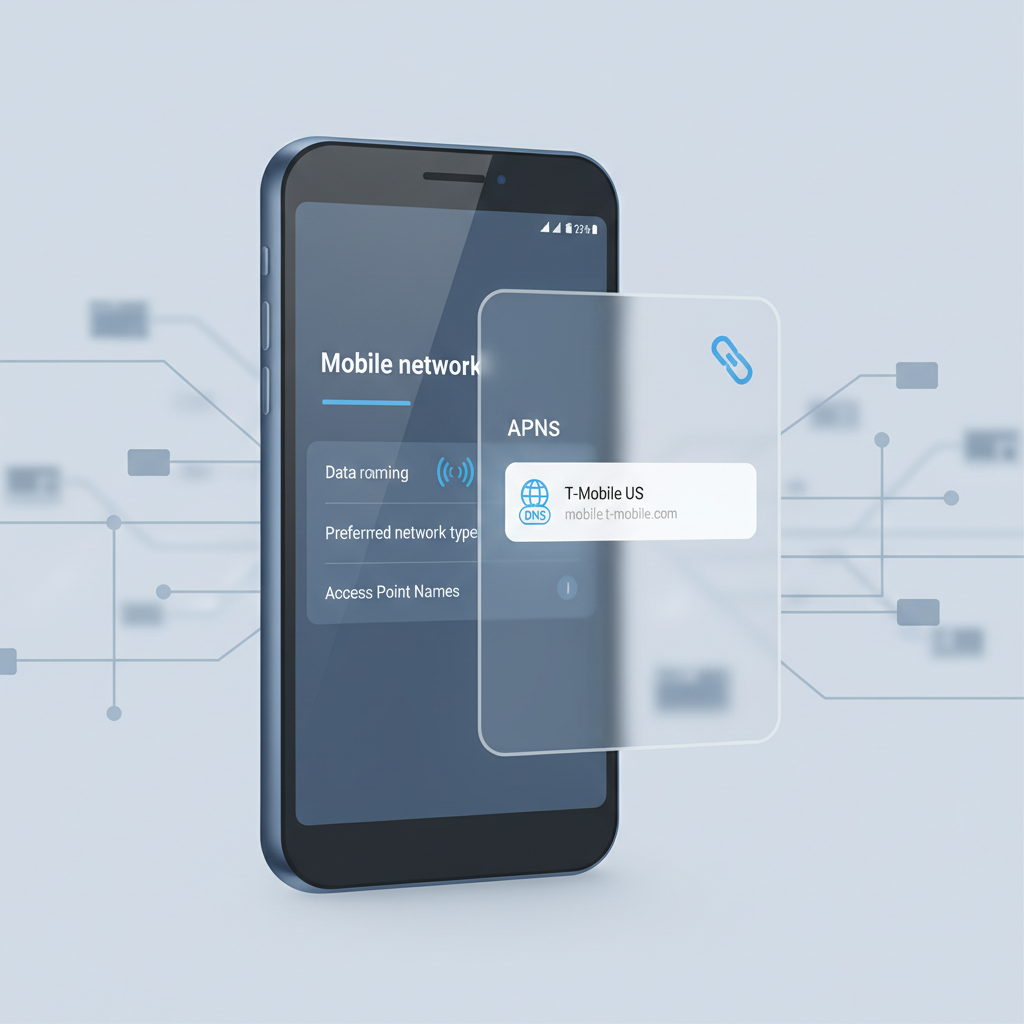
APN and network resets: the “connected but no internet” fix
When you’re stuck on “Wi‑Fi connected, no internet,” APN settings and network stacks become the most likely layer.
Reset APN to default
APN (Access Point Name) is the carrier profile your phone uses to reach the internet. If it’s misconfigured, tethering can fail even if basic data sometimes limps along.
- Go to your carrier APN screen (varies by Android version and manufacturer).
- Choose Reset to default.
- Reboot, then test hotspot again.
According to Google Android Help guidance, resetting network settings can resolve connectivity issues caused by corrupted Wi‑Fi, mobile, or Bluetooth configuration.
Reset network settings (bigger hammer)
This wipes saved Wi‑Fi networks, paired Bluetooth devices, and some network preferences, so do it when you’re ready to rejoin Wi‑Fi later.
- Settings → System → Reset options → Reset Wi‑Fi, mobile & Bluetooth (wording varies).
- Reboot, enable hotspot, test with one device.
Practical, step-by-step “fix flows” by scenario
If you want a more mechanical path, pick the flow that matches your situation and follow it straight through.
Scenario A: Hotspot won’t turn on
- Confirm cellular data works on the phone.
- Turn off Battery Saver, then retry.
- Restart phone, toggle Airplane mode.
- Update Android and carrier services if updates are pending.
- If it still fails, check plan provisioning with your carrier.
Scenario B: Devices connect, but there’s no internet
- Disable VPN, Private DNS off/automatic, test again.
- Reset APN to default, reboot.
- Try 2.4 GHz band and WPA2 security.
- Test with a second client device to rule out a single-device issue.
Scenario C: Connection drops or speed is unusable
- Move closer to a window or outside briefly, signal matters more than people expect.
- Lock to LTE for a test if 5G is flaky in your area (option depends on device/carrier).
- Reduce connected devices, then add them back one by one.
- Switch bands and keep screen awake during a short test to eliminate sleep throttling.
Common mistakes that waste time
- Changing five settings at once: you never learn what fixed it, and you might create a new problem.
- Ignoring the client device: sometimes the laptop Wi‑Fi driver or iPad network stack needs a restart.
- Assuming “unlimited” means unlimited hotspot: many plans separate on-phone data from tethering.
- Leaving WPA3 on with older devices: compatibility still varies, especially on older Windows builds.
If you’re trying to figure out how to fix hotspots not working android under pressure, pick one scenario flow above and stick to it, it keeps you from spiraling into random toggling.
When it’s time to get help (or escalate)
If you’ve reset APN, tested bands/security, and confirmed the phone has cellular internet, the remaining issues often involve account provisioning, SIM problems, or device firmware bugs.
- Contact your carrier if hotspot won’t enable or tethering seems blocked on your line.
- Visit the device manufacturer support if a recent update triggered the problem and others report it too.
- Consider professional repair if the phone also shows broader radio issues, like frequent “No service,” SIM not detected, or inconsistent cellular registration.
If you’re on a work-managed phone, talk to IT first, some mobile device management policies can restrict tethering and you can’t override them safely.
Conclusion: a reliable way to get hotspot working again
Most hotspot failures resolve when you confirm cellular data works, then fix the basics: forget/rejoin on the client, switch to 2.4 GHz and WPA2, disable VPN/Private DNS for testing, and reset APN if you see “connected but no internet.” If the hotspot toggle itself won’t stay on, that’s when plan provisioning and carrier limits move to the top of the list.
If you want one action to take right now, do this: set hotspot to 2.4 GHz + WPA2, turn off VPN, and reconnect from one device. If that works, you can add security and performance tweaks back with confidence.
FAQ
- Why does my Android hotspot say connected but there’s no internet?
Often it’s VPN, Private DNS, or APN-related. Turn off VPN and set Private DNS to automatic/off, then reset APN to default and reboot. - My hotspot won’t turn on at all, what’s the most likely reason?
Carrier provisioning and plan restrictions are common in the U.S., especially on MVNO plans. Also check Battery Saver and whether mobile data works on the phone. - How do I fix hotspot password “incorrect” when it’s correct?
Forget the network on the client device, then rejoin. If it persists, change hotspot security to WPA2 and set a new password, some devices choke on WPA3-only. - Does resetting network settings delete anything important?
It removes saved Wi‑Fi networks and Bluetooth pairings and resets some preferences. Your photos and apps stay, but you’ll need to reconnect to Wi‑Fi networks. - Why is my hotspot so slow even with strong signal?
It can be plan-based deprioritization, local congestion, or the client device. Test with one device, switch bands, and try LTE-only for a quick comparison. - Can Android hotspot work without a SIM card?
Usually no for internet sharing, because tethering relies on cellular data. You can still create a Wi‑Fi network, but it won’t provide internet without an upstream connection. - What’s the safest order to troubleshoot without breaking settings?
Restart and reconnect, adjust band/security, disable VPN/Private DNS for testing, then reset APN, and only after that do a full network reset.
If you’re still stuck and you’d rather not keep guessing, it may help to document your exact symptom, Android version, carrier, and what you already tried, then share that with your carrier or device support so they can confirm provisioning and spot known firmware issues faster.