
how to check battery health iphone is mostly a Settings job, but the trick is knowing what the numbers actually mean and when they matter.
If your iPhone suddenly drops from 30% to 5%, feels warm during light use, or needs a midday charge, you can usually confirm what’s going on in a few minutes. Battery health is not just a “percent remaining” situation, it’s a mix of capacity, peak performance, charging habits, and sometimes iOS behavior.
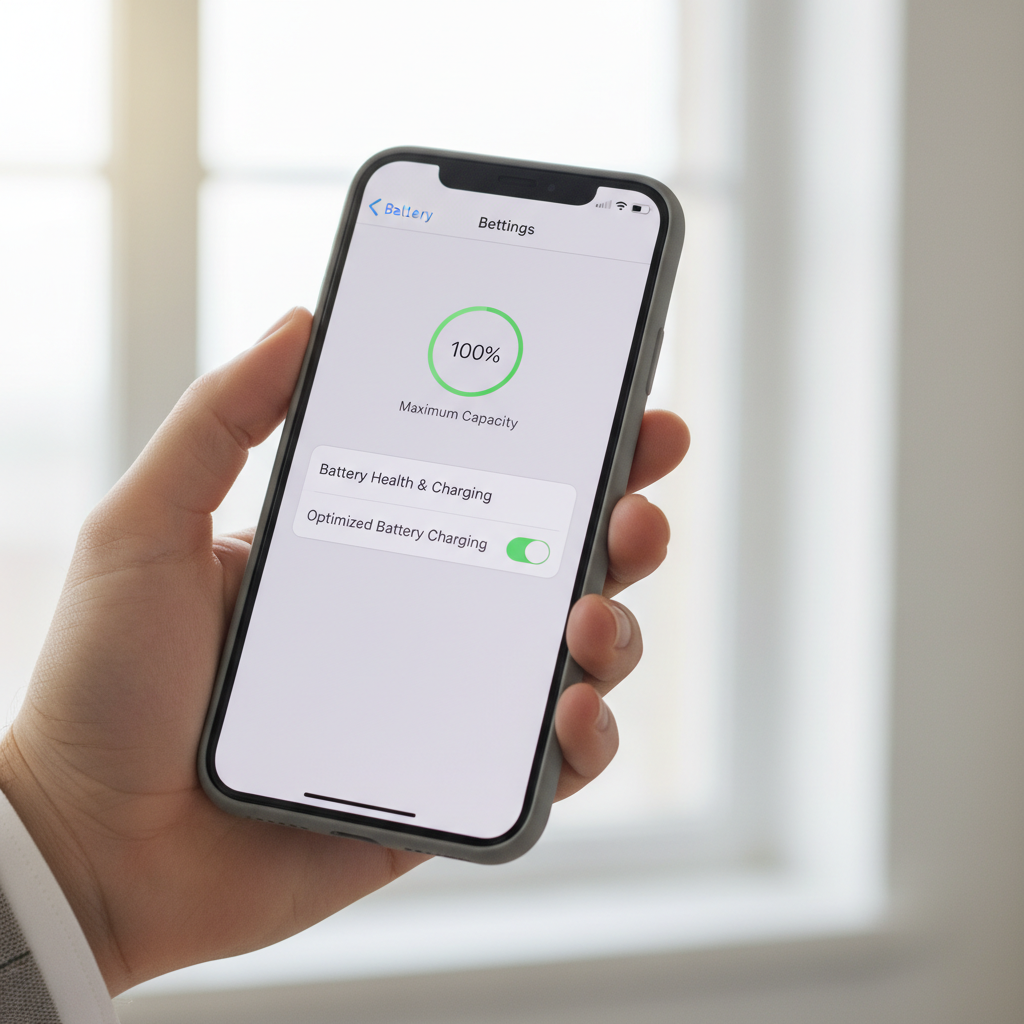
This guide walks you through the built-in Battery Health screen, how to sanity-check it with real-world symptoms, and what to do next, from simple settings to knowing when a replacement becomes the more reasonable move.
Where to find Battery Health on iPhone (and what you’ll see)
On most modern iPhones, Apple puts the key metrics in one place.
- Go to: Settings > Battery > Battery Health & Charging
- If you don’t see it, your device or iOS version might be older, or battery health reporting might be limited on some models.
You’ll typically see two items that people care about:
- Maximum Capacity: an estimate of how much charge the battery can hold compared with when it was new.
- Peak Performance Capability: whether iOS is currently managing performance to prevent unexpected shutdowns.
According to Apple... iPhone batteries are designed to retain up to 80% of their original capacity at 500 complete charge cycles under ideal conditions, but everyday reality varies by usage, heat, and charging patterns.
What “Maximum Capacity” really tells you (and what it doesn’t)
Maximum Capacity is the headline number, but it’s easy to overreact to it.
In many cases, a phone at 90–95% can still feel “bad” if background activity is heavy, you’re in a weak-signal area, or iOS is indexing photos. Meanwhile, a phone at 82–85% can feel fine if your use is light and you charge often.
Quick interpretation guide
Use this as a practical read, not a verdict.
- 95–100%: usually normal for newer devices, focus on apps, signal, and settings if drain feels fast.
- 85–94%: common after a year or two, you may notice shorter screen-on time.
- 80–84%: many people start considering a battery replacement if daily inconvenience shows up.
- Below 80%: often aligns with noticeably reduced runtime, replacement becomes a more realistic discussion.
Peak Performance, throttling, and why your iPhone might feel slower
When an aging battery can’t reliably deliver power spikes, iOS may limit performance to prevent unexpected shutdowns. That’s what Peak Performance messages are about.
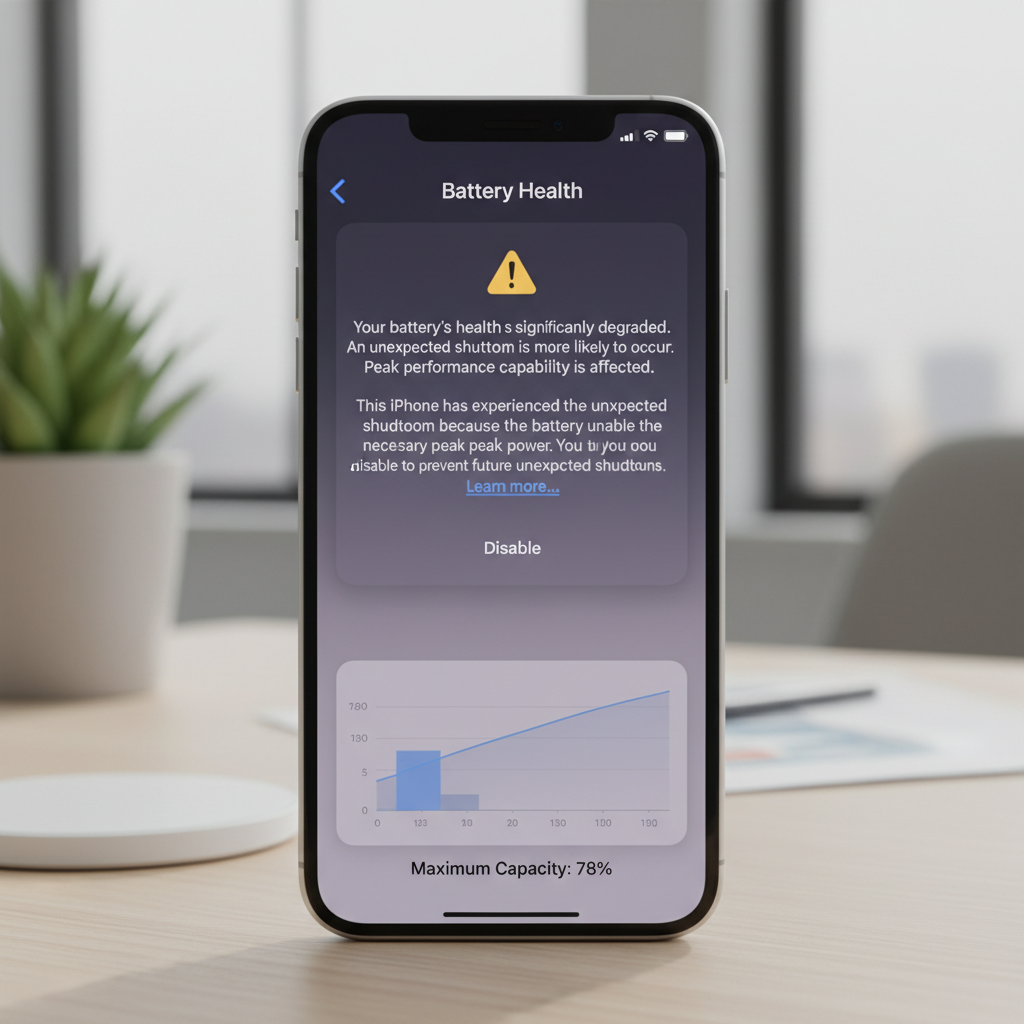
If you see language about performance management, it doesn’t automatically mean your phone is “dying,” it means the battery’s ability to supply peak power is less consistent.
- No message / normal peak performance: iOS isn’t currently limiting speed for stability.
- Performance management applied: you might notice slower launches, lower frame rates, or camera lag during heavy tasks.
- Battery can’t support normal peak performance: replacement is often the cleanest fix if the phone feels unreliable.
According to Apple... performance management is intended to avoid unexpected shutdowns, and the system may reduce the impact when conditions improve, but the underlying battery aging does not reverse.
A fast self-check: are you dealing with battery health, or something else?
Before you chase a replacement, do a quick reality check. Many “battery problems” are actually settings, apps, or network conditions.
- Battery health likely involved if you see: capacity below the mid-80s, sudden percentage drops, unexpected shutdowns, or performance management notices.
- Not just battery health if you see: big drain only on specific days, drain after a major update, or one app dominating Battery usage.
Open Settings > Battery and review the last 24 hours (and last 10 days if available). Look for:
- Background activity spikes when you weren’t using the phone
- Location usage from a single app
- Screen-on time that simply increased without you noticing
What to do after you check iPhone battery health (practical steps)
After you confirm the Battery Health screen, your next step depends on what you found. Here’s a realistic, low-drama order of operations.
If Maximum Capacity is fine but drain feels awful
- Update iOS: bug fixes can reduce abnormal drain, especially after early releases.
- Check Battery usage: uninstall or limit the top offender, or restrict background refresh.
- Adjust location permissions: set heavy apps to “While Using” instead of “Always.”
- Review push mail and widgets: frequent fetching can quietly chew through battery.
Also, weak cellular signal can push radios to work harder. If drain spikes in certain buildings or neighborhoods, that pattern matters.
If capacity is in the low 80s and your day no longer fits
- Enable Low Power Mode during long days, it’s not a “failure,” it’s a tool.
- Turn on Optimized Battery Charging if you keep a consistent schedule, it can reduce time spent at 100%.
- Avoid heat: hot cars and heavy gaming while charging often accelerate battery aging.
According to Apple... heat is one of the key factors that can permanently reduce battery capacity, so “battery care” is often just “temperature care.”
If Peak Performance shows management or shutdown history
- Back up your iPhone before any service decision.
- Run a restart cycle: restart and observe for a day, sometimes a stuck process creates misleading symptoms.
- Consider battery replacement if reliability matters more than squeezing out a few extra months.
At-a-glance table: symptoms, likely causes, and next move
Use this as a quick decision helper when you’re not sure what to do next.
| What you notice | Likely cause (often) | What to try next |
|---|---|---|
| Battery drops fast only with one app | App bug, background activity | Update/reinstall app, limit background refresh |
| Phone warm during light use | Background processes, poor signal, charging habits | Check Battery usage, update iOS, reduce location/push |
| Sudden shutdown at 20–30% | Battery peak power instability | Check Peak Performance message, consider replacement |
| Feels slower after battery aging | Performance management for stability | Confirm in Battery Health, weigh replacement vs upgrade |
| Capacity below 80% | Normal wear over cycles and heat exposure | Service options, adjust usage expectations |
Common mistakes that waste time (or make battery wear faster)
A few habits show up again and again, and they usually create confusion more than solutions.
- Obsessing over closing apps: in many cases, force-quitting constantly can increase reload work and feel worse.
- Using random “battery saver” apps: iOS already manages power, third-party tools often add noise.
- Ignoring heat: fast charging in a hot environment, or charging under a pillow, can be rough on batteries.
- Judging battery health by percent alone: battery gauge behavior can drift, and iOS recalibrates over time.
If you’re trying to extend lifespan, the most “boring” moves tend to help most: keep the phone cool, avoid long stretches at extreme heat, and use Apple’s charging features as intended.
When it’s time to get professional help (and what “service” usually means)
If your iPhone shows repeated unexpected shutdowns, serious swelling, or charging problems, stop experimenting and talk to a professional. Battery issues can have safety implications, and swollen batteries in particular deserve caution.
- Choose official support or a reputable repair shop to reduce risk of poor-quality parts.
- Ask for a clear diagnosis: battery condition, charging port, and any liquid indicators (if relevant).
- If you rely on your phone for work or medical alerts, prioritize reliability over “stretching it out.”
According to Apple... service options vary by product and region, and authorized service providers can run diagnostics that go beyond what the Battery Health screen shows.
Key takeaways and next steps
Key point: Battery Health is a useful signal, but your symptoms and usage pattern decide what action makes sense.
- Check Settings > Battery > Battery Health & Charging, then confirm with Battery usage trends.
- If capacity sits in the low 80s and your day is getting hard to manage, a replacement often feels like a reset.
- If drain is new and sudden, investigate apps, signal, and iOS behavior before blaming the battery.
If you want a simple plan, spend 10 minutes today: check Battery Health, scan Battery usage for the top 1–2 apps, and adjust background and location settings. You’ll usually know quickly whether you’re dealing with settings noise or real battery wear.
FAQ
How to check battery health iPhone without a third-party app?
Use Settings > Battery > Battery Health & Charging. Apple’s built-in metrics are typically the most reliable place to start, and they keep you out of questionable “battery doctor” apps.
What is a “good” Maximum Capacity percentage?
It depends on age and use, but many people feel fine in the 85–100% range. Once you’re near 80%, day-to-day runtime often becomes the deciding factor, not the number itself.
Why is my iPhone battery draining fast but health is 95%?
That often points to software and usage: a power-hungry app, heavy background activity, poor signal, or post-update indexing. Check Settings > Battery to see what’s consuming power in the last 24 hours.
Does Optimized Battery Charging actually help?
In many cases, yes, especially if you charge overnight on a predictable schedule. It can reduce time spent sitting at 100%, which is one factor that can contribute to long-term wear.
Can I improve Maximum Capacity once it drops?
Usually no, capacity loss is typically permanent aging. You can sometimes improve “feel” by reducing background drain, but the health percentage itself rarely climbs meaningfully.
Is it safe to keep using an iPhone with low battery health?
Often it’s fine, but reliability can drop, and unexpected shutdowns become more likely. If you notice swelling, overheating, or a strong chemical smell, stop using it and consult a professional promptly.
How do I know if I should replace the battery or upgrade the phone?
If the phone still meets your needs and only battery life is the issue, replacement can be a straightforward fix. If performance, storage, camera, or cellular support also feels limiting, upgrading may make more sense financially and practically.