
how to fix keyboard not working windows usually comes down to three buckets: a physical connection problem, a Windows setting that changed, or a driver issue that silently broke after an update. The good news is you can narrow it down quickly without reinstalling Windows or buying a new keyboard on day one.
If you use your PC for work or school, a dead keyboard is more than annoying, it blocks everything from sign-in to basic troubleshooting. The trick is to start with checks that cost you 30 seconds, then move toward the fixes that actually change system state.
One common misunderstanding is assuming “keyboard not working” means the keyboard is dead. In reality, Windows can route inputs weirdly through accessibility features, power management, or a stuck driver. This guide helps you diagnose the type of failure and apply the right fix with minimal risk.

Quick triage: figure out what “not working” really means
Before you change settings, pin down the symptom. It sounds obvious, but this step prevents you from chasing the wrong fix.
- No keys work anywhere (including login screen): often hardware, USB port, or low-level driver.
- Some keys work, others don’t: often language/layout, stuck keys, or physical damage.
- Keyboard works in BIOS, not in Windows: usually Windows driver, filter software, or accessibility settings.
- External keyboard works but laptop keyboard doesn’t: likely laptop-specific driver, ribbon cable, or power settings.
If you’re locked out of your PC, plug in a known-good USB keyboard first. If you don’t have one, Windows on-screen keyboard can help.
Start with the basics (they fix more than people expect)
These checks sound too simple, but they catch a lot of real-world failures, especially after moving a desktop or docking/undocking a laptop.
External USB keyboard checklist
- Unplug, wait 10 seconds, plug back in.
- Try a different USB port, preferably a port directly on the PC (not a hub).
- If it’s a wireless dongle, move it to another port and keep it close to the keyboard.
- Replace batteries or recharge if it’s Bluetooth/wireless.
Bluetooth keyboard checklist
- Toggle Bluetooth off/on in Windows.
- Remove the device, then re-pair it.
- Confirm you’re pairing the correct device (some keyboards expose multiple profiles).
According to Microsoft Support, removing and re-adding Bluetooth devices can resolve pairing and input issues caused by stale device states.
Use the built-in Windows tools (fast wins)
Windows has a few troubleshooting paths that are worth using because they fix common configuration and driver hiccups with low risk.
Run the Keyboard troubleshooter (Windows 11/10)
- Settings → System → Troubleshoot → Other troubleshooters → Keyboard
- Run it, apply recommended fixes, reboot once after changes
It won’t solve everything, but it can reset a handful of input-related settings and point out conflicts.
Try the On-Screen Keyboard when you can’t type
- Settings → Accessibility → Keyboard → On-Screen Keyboard
- Or on the sign-in screen, select the Accessibility icon and enable it
This is also useful for testing: if the on-screen keyboard types normally, Windows itself is likely fine, and you’re dealing with a hardware/driver path for the physical keyboard.
Fix drivers the safe way (Device Manager steps that actually help)
If you’re searching how to fix keyboard not working windows, driver repair is where most “it was fine yesterday” cases land, especially after Windows Updates, OEM utility updates, or endpoint security changes.
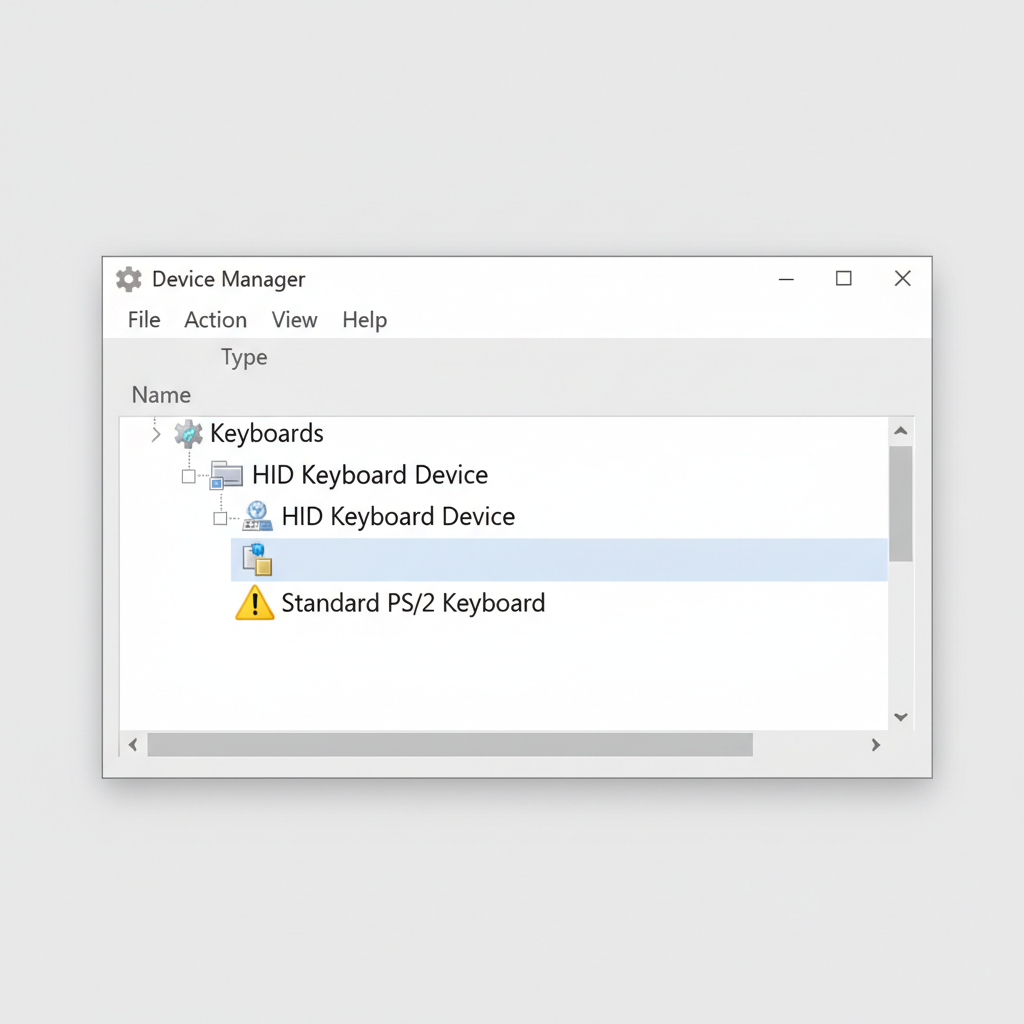
1) Reinstall the keyboard device
- Right-click Start → Device Manager
- Expand Keyboards
- Right-click your keyboard device → Uninstall device
- Reboot, Windows should reinstall it automatically
If you see multiple “HID Keyboard Device” entries, uninstalling the wrong one can temporarily disconnect the keyboard, so keep a USB backup keyboard ready when possible.
2) Update drivers, but avoid sketchy driver tools
- Device Manager → Keyboards → right-click device → Update driver
- If you have a laptop, also check your manufacturer support page for the exact model
Many third-party “driver updater” apps are more trouble than help. Stick to Windows Update, Device Manager, and your PC maker’s official drivers when you can.
3) Check USB and chipset drivers (for external keyboards)
When the keyboard drops out across multiple USB devices, the root cause can be USB controller behavior.
- Device Manager → Universal Serial Bus controllers
- Look for warning icons, update drivers if available
Settings that quietly disable typing (common culprits)
Sometimes nothing is “broken,” Windows is just interpreting input differently. These are worth checking when some keys work but typing feels wrong.
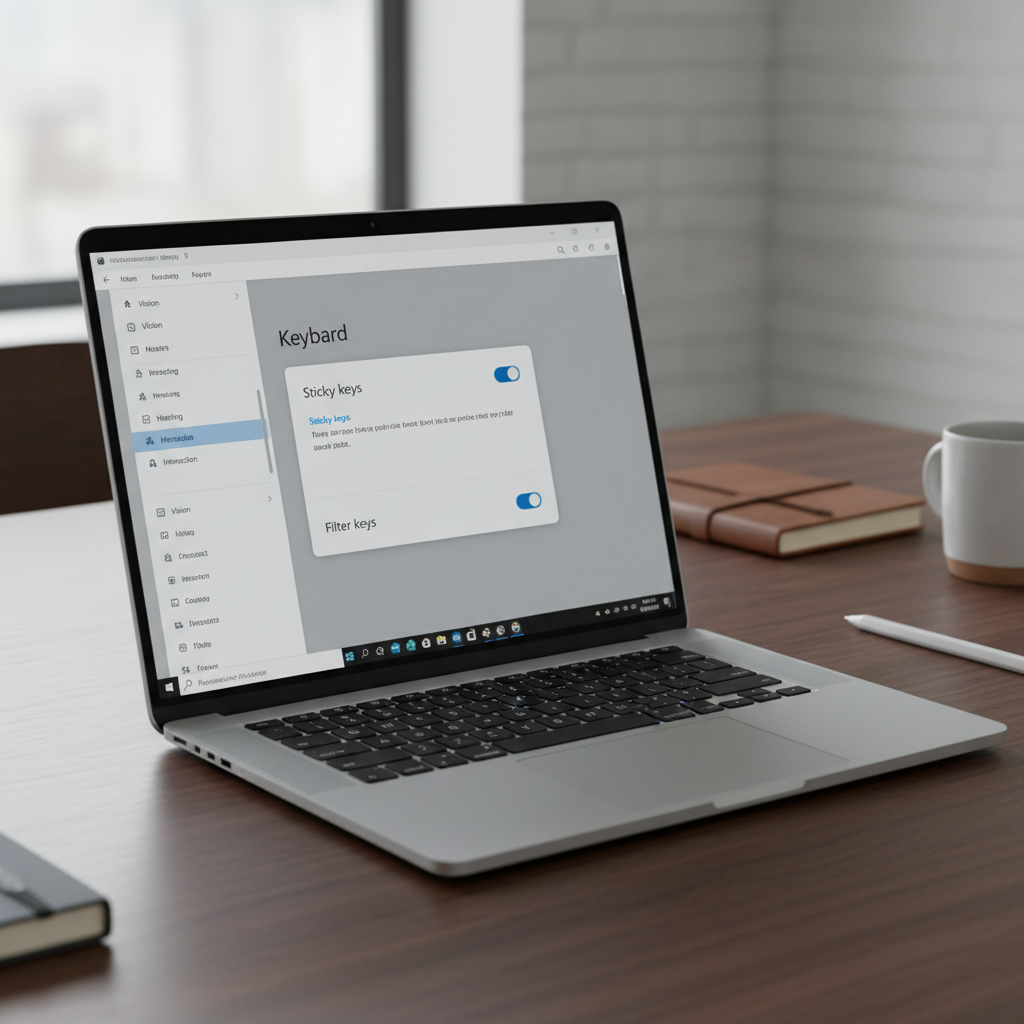
Accessibility toggles: Sticky Keys and Filter Keys
- Settings → Accessibility → Keyboard
- Turn off Sticky Keys and Filter Keys for testing
Filter Keys in particular can make keystrokes feel delayed or ignored, which users often interpret as “keyboard died.”
Keyboard layout and language
- Settings → Time & language → Language & region
- Confirm the correct language pack and keyboard layout
If symbols or letters appear “wrong,” this is frequently the explanation, not hardware failure.
Fast Startup (sometimes interferes with USB initialization)
- Control Panel → Power Options → Choose what the power buttons do
- Change settings that are currently unavailable
- Uncheck Turn on fast startup (test), then fully shut down and boot
This is not a universal fix, but it can help on certain hardware where devices don’t wake cleanly.
Decision table: pick the right fix by symptom
If you want to move faster, match your symptom to the most likely fix path. This avoids random trial-and-error.
| What you’re seeing | Most likely cause | What to try first |
|---|---|---|
| Keyboard dead everywhere, even at login | Connection, USB port, hardware | Different port, different cable/dongle, known-good keyboard |
| Works in BIOS but not in Windows | Windows driver/config conflict | Reinstall keyboard device, check accessibility toggles |
| Typing delayed or some keys ignored | Filter Keys, stuck key | Disable Filter Keys, clean keyboard, test another keyboard |
| Wrong characters appear | Keyboard layout/language | Verify layout in Language & region settings |
| External works, laptop keyboard doesn’t | Laptop driver, internal connection | OEM driver update, Windows Update, then consider service |
When it’s not Windows: hardware and “hidden” conflicts
At a certain point, the honest answer is that software fixes stop paying off. These checks help confirm you’re dealing with hardware or a conflict outside the standard driver stack.
Test outside your current Windows session
- Try the keyboard in BIOS/UEFI, or in Windows Recovery Environment if you can reach it
- Test the keyboard on another computer
If the keyboard fails on another PC too, it’s probably the keyboard itself. If it works elsewhere, the Windows install or a software layer on your PC is more likely.
Look for software that intercepts input
- Key remapping tools, macro software, gaming overlays
- Remote desktop tools and “keyboard hook” utilities
- Some security/endpoint agents can affect HID devices in rare cases
Try a clean boot test if you suspect a conflict. According to Microsoft Support, clean boot helps identify whether background services or startup apps cause system behavior issues.
Laptop-specific reality check
If only the built-in laptop keyboard fails, and an external one works reliably, the issue could be a loose internal connector or physical wear. That’s not something Windows settings can reliably fix.
Key takeaways and a practical “do this in order” plan
If you’re tired of bouncing between tips, here’s a clean sequence that usually finds the answer without causing collateral damage.
- Confirm the symptom: dead everywhere vs. wrong characters vs. intermittent.
- Eliminate the easy stuff: different port, batteries, re-pair Bluetooth.
- Use Windows tools: keyboard troubleshooter, on-screen keyboard to stay productive.
- Fix drivers carefully: uninstall keyboard device, reboot, then update via official sources.
- Check settings: Sticky/Filter Keys, language/layout, Fast Startup test.
- Prove hardware vs. software: test on another PC, test in BIOS, consider service for laptop internals.
If you still need how to fix keyboard not working windows after this flow, the remaining cases are often hardware failure or a third-party software conflict, and those take more targeted diagnosis than generic tweaks.
Conclusion
Most keyboard failures on Windows are fixable once you stop guessing and treat it like a quick investigation: confirm the symptom, test a known-good keyboard, then focus on drivers and a handful of Windows settings that commonly block input. If the keyboard works outside Windows but not inside it, driver and configuration fixes are the best next bet; if it fails everywhere, it’s probably time to swap hardware or ask a technician to check laptop internals.
If you want one action to take right now, plug in a different keyboard to isolate hardware vs. Windows, then reinstall the keyboard device in Device Manager. Those two steps solve a surprising share of cases without making your system messy.
FAQ
- Why is my keyboard not working on Windows but my mouse works?
That often points to a keyboard-specific driver issue, a bad USB port, or an accessibility setting affecting typing. Try a different USB port and reinstall the keyboard device in Device Manager. - How do I fix a Windows keyboard not working after an update?
Start with Device Manager: uninstall the keyboard device and reboot so Windows can re-detect it. If it’s a laptop, check your OEM support page for a newer keyboard/chipset driver that matches your model. - What if the keyboard works in BIOS but not in Windows?
That usually means the hardware is okay and Windows is the problem. Focus on accessibility toggles, language/layout, and driver reinstall. Also consider clean boot to rule out a background app intercepting input. - How can I type if my keyboard won’t work at the sign-in screen?
Use a USB keyboard if possible. If you can access the Accessibility icon on the sign-in screen, enable the on-screen keyboard, then sign in and continue troubleshooting. - Can Filter Keys make my keyboard seem broken?
Yes, in many cases it makes keystrokes register slowly or not at all, especially if you type quickly. Turn it off temporarily to test and see if responsiveness returns. - Should I download a driver updater to fix my keyboard?
Usually no. Stick with Windows Update, Device Manager, and your manufacturer’s official drivers. Third-party driver tools can install mismatched drivers or bundle unwanted software. - When should I seek professional help for a Windows keyboard issue?
If a laptop’s built-in keyboard fails while an external keyboard works, and driver/settings fixes don’t help, an internal connection or keyboard assembly might be the cause. A repair shop or the manufacturer can confirm without guesswork.
If you’re trying to get a Windows machine usable again quickly, it can help to keep a cheap wired USB keyboard around as a “known-good” tester, and to document what changed right before the issue started, such as an update, new security software, or a docking station swap. That context often saves time when you escalate to IT or a repair technician.